Loading...

Azure Quick Links

Azure Cloud Projects

DevOps: Agents, Pipelines & Secrets

A complete DevOps setup for configuring self-hosted agents, running YAML pipelines, managing secrets, and sending secure notifications via SendGrid.

This project walks you through the essential setup steps for Azure DevOps before building advanced CI/CD pipelines. You’ll create a new project, configure authentication, set up a self-hosted agent, initialize your repo, run your first YAML pipeline, connect GitHub, and manage secrets with Key Vault and group variables.
By the end, you’ll have a solid DevOps foundation that matches real industry environments.

*

Task Details

1. Create a new Agile project and generate a PAT if you plan to use a self-hosted agent.

2. Create an agent pool, add a self-hosted agent, download the agent, and complete the connection to Azure DevOps.

3. Initialize the main branch and upload a test YAML pipeline file.

4. Create a pipeline to run your YAML file.

5. Securely send an external notification email via the SendGrid API and store the API key as a secret in Azure Key Vault.

6. Manage secrets using variable groups instead of the Azure Key Vault.

7. Bonus: Connect your GitHub account to Azure DevOps.

*

Steps

Create a new Agile project and generate a PAT if you plan to use a self-hosted agent.

The PAT is a vital security step that allows your self-hosted agent to securely connect and authenticate with your Azure DevOps environment.

1. Create a new Agile project.

  • Navigate to Azure DevOps.
  • Click on “New Project”.
  • Choose the Agile process template.
  • Provide a project name and optional description.
  • Click “Create” to initialize your new Agile project.

*

2. Create a Personal Access Token (PAT) for Authentication

  • In Azure DevOps, click on your user profile in the top-right corner.
  • Navigate to User settings → Personal access tokens

*

3. Click “New Token”

*

4. Give the token a name, select the appropriate organization, and set an expiration date.

  • Choose the scopes/permissions required for your self-hosted agent or pipeline.
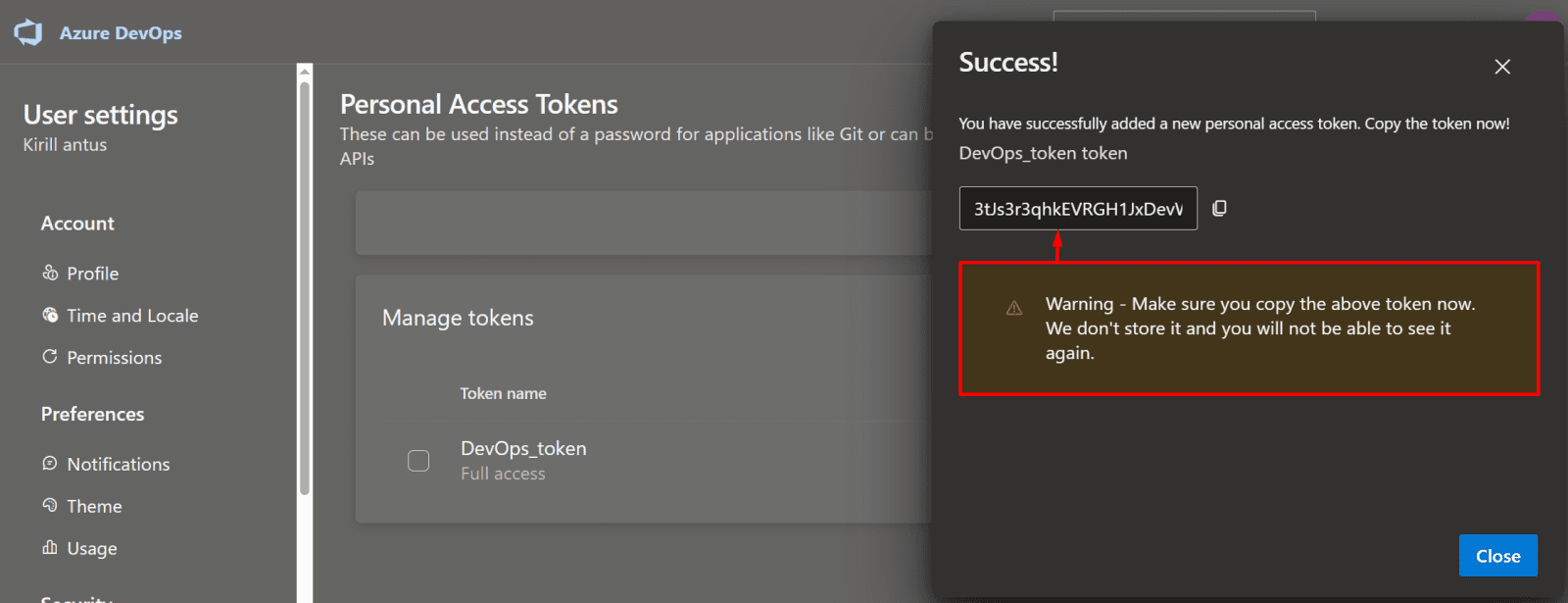
  • Click “Create” and copy the token—you won’t be able to see it again.
  • Use this token to authenticate your Windows system or agent with Azure DevOps

Note: For demonstration purposes, this demo will use full access permissions. In production environments, it is recommended to follow the principle of least privilege and grant only the necessary permissions.

*

5. Make sure to save the token value.
*

Create an agent pool, add a self-hosted agent, download the agent, and complete the connection to Azure DevOps.

This guide walks you through setting up a self-hosted agent by creating an agent pool, downloading the agent software, and quickly connecting your dedicated machine to Azure DevOps for flexible and powerful pipeline execution.

1. Navigate to Your Project in Azure DevOps.

  • Open Azure DevOps in your browser.
  • Select your organization from the list.
  • Click on the project you want to work on to open its dashboard.

*

2. Open Project Settings.

  • In your Azure DevOps project, scroll to the bottom-left corner of the page.
  • Click on Project Settings to access configuration options for your project.

*

3. Choose Your Agent Pool

  • To use your own machine, select the Default (Self-Hosted) Agent.
  • If you want to use Microsoft-managed infrastructure, select Azure Pipelines, which provides a Microsoft-hosted agent.

*

4. Add a Self-Hosted Agent Pool

  • Click “Add pool” to create a new agent pool.
  • Under Pool type, select Self-hosted.
  • Provide a name for your agent pool.
  • Check “Grant access permissions to all pipelines” to allow all pipelines in the project to use this pool.

Note: An agent pool provides the machines (agents) that Azure DevOps pipelines use to run builds, tests, and deployments. Without a pool, your pipelines cannot execute.

*

5. Click on the self-hosted agent pool you just created to view its details and manage agents.

*

6. Add a New Agent.

  • Click “New agent” within your self-hosted agent pool.
  • Download the agent package for your operating system (e.g., Windows, Linux, macOS).

*

7. Initialize the Agent Connection.

  • Unzip the downloaded agent and (optionally) rename the folder to devops-agent for simplicity.
  • Open a terminal or PowerShell in the agent folder.
  • Run the configuration script: config.cmd

When prompted, provide:

  • Server URL – the URL of your Azure DevOps organization.
  • Personal Access Token (PAT) – generated earlier.
  • Agent pool – select the pool you created.

Accept the default settings for the remaining prompts, unless you have custom requirements.

*

8. Start the Self-Hosted Agent

  • In the agent folder, run the following command to start the agent and listen for pipeline requests: run.cmd

The agent will now connect to Azure DevOps and be ready to execute jobs from your pipelines.

*

9. Ready to Run Pipelines.

  • With your self-hosted agent running and connected, you are now ready to execute Azure DevOps pipelines.
  • Pipelines will use your self-hosted agent to perform builds, tests, and deployments.

Initialize the main branch and upload a test YAML pipeline file.

We perform these steps to create a stable starting point for development and to immediately verify the connection of our newly configured self-hosted agent to Azure DevOps.

1. Initialize a New Branch in Repos.

  • Navigate to Repos → Files in your Azure DevOps project.
  • Click Initialize to create a new main branch for your repository.
  • This will set up the repository so you can start adding files and pipelines.

*

2. Upload Your YAML Pipeline File.

  • Navigate to Repos → Files in your Azure DevOps project.
  • Click More actions (⋯) → Upload files.
  • Select your YAML pipeline file from your local machine and upload it to the repository.

*

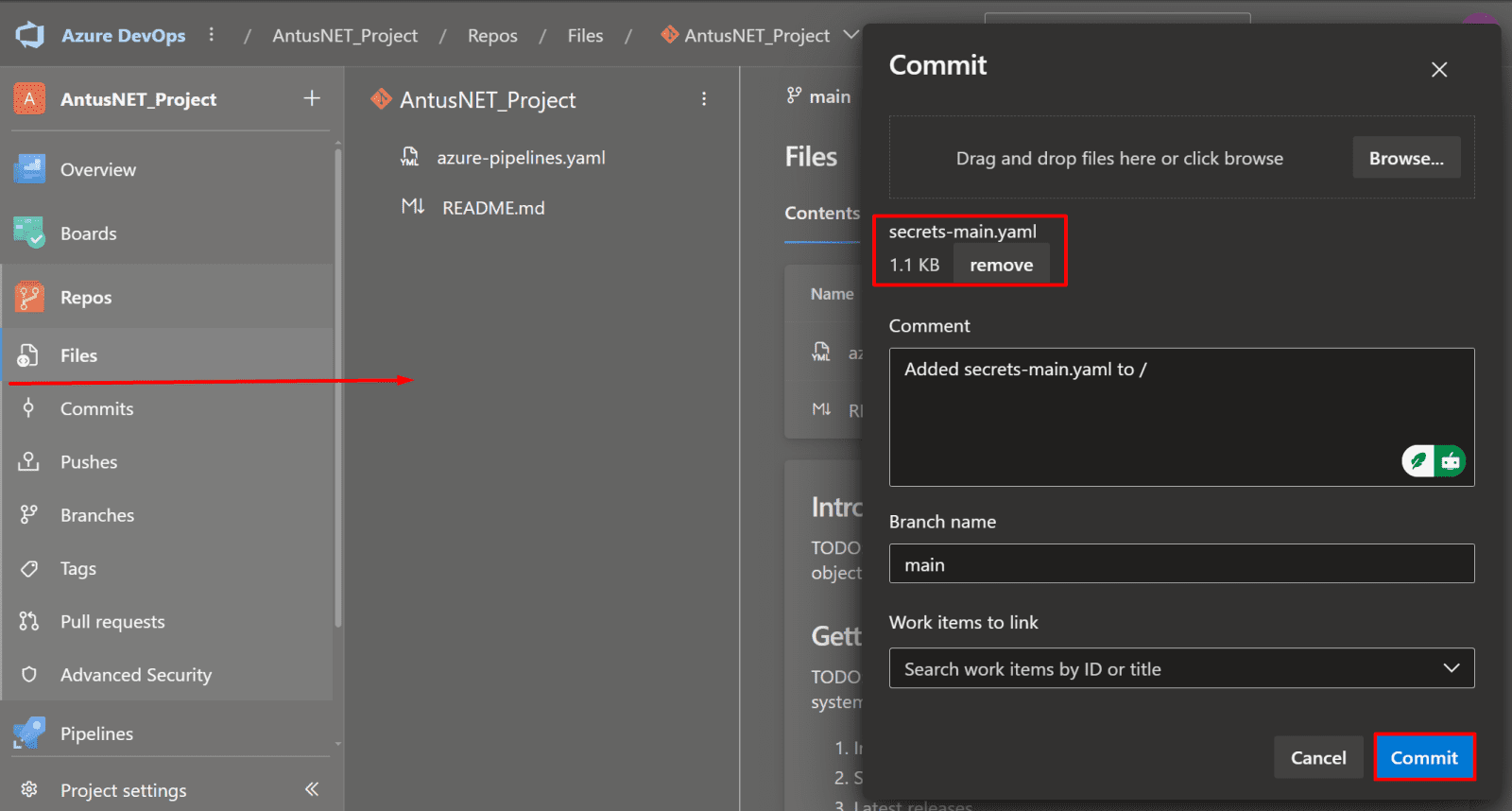
3. Commit Your YAML Pipeline File.

  • Drag and drop the YAML file into the repository if not done via the upload dialog.
  • Add a commit message describing your changes.
  • Click Commit to save the file to the main branch (or your chosen branch).

Copy Azure-pipelines.yaml

Note: This script is an Azure Pipelines YAML definition that creates a simple, multi-step pipeline designed to test and verify the functionality of a self-hosted agent named Default (or the name you specify).

It's essentially a basic diagnostic job to confirm that the agent is online, can execute PowerShell commands, and has access to the underlying operating system and file system.

In summary, this script is a diagnostic tool for an Azure DevOps administrator to ensure that a newly set-up self-hosted Windows agent is correctly configured and operational.

*

Create a pipeline to run your YAML file.

1. Create a New Pipeline.

  • Navigate to Pipelines in your Azure DevOps project.
  • Click “Create Pipeline” to start the pipeline setup process.

*

2. Select Repository Type.

  • In the pipeline creation wizard, choose “Azure Repos Git (YAML)” as the source for your pipeline.

This allows your pipeline to use the YAML file stored in your Azure DevOps repository.

*

3. Choose your project.

*

4. Select the option “Existing Azure Pipeline YAML file.”

*

5. Select the YAML file path and click continue.

*

6. Run the pipeline.

  • Click Run to execute the pipeline using the selected YAML file.
  • The pipeline will now run on your self-hosted agent, performing the tasks defined in the YAML configuration.
  • Monitor the progress and view logs directly in the Pipelines section.

*

7. Assign permission to the pipeline.

  • Click "View"
  • Click "Permit"

*

8. It triggers on main and runs four simple PowerShell tests to confirm your Windows self-hosted agent is working.

*

Conclusion

The agent has successfully connected to Azure DevOps and validated communication with the target virtual machine. All required services, permissions, and network configurations are functioning as expected. The pipeline is now fully prepared to proceed with deployment, automated tasks, and ongoing CI/CD operations. This confirms that the environment is stable and ready for further DevOps workflows.

Securely send an external notification email via the SendGrid API and store the API key as a secret in Azure Key Vault.

1. To send an email through SendGrid (https://app.sendgrid.com/), you need to store the SendGrid API key as a secret in the Key Vault."

*

2. Copy the key! It's only shows once.

*

3. Verify Your Sender Identity.

  • Go to Settings > Sender Authentication.
  • Create Single Sender: Under "Single Sender Verification," click "Get Started."

*

4. Create a sender.

Note: the From and Reply To email addresses can be the same, and often they are.

*

5. Click the Verification Link.

When you click the "Create" button on that form, SendGrid does two things:

  • It creates a pending Sender Identity entry in your SendGrid account.
  • It sends an email with a verification link to the "From Email Address" you entered: support@antusnet.ca.
  • Go to your email and Click "Verify single sender"

*

6. You will be redirected back to the SendGrid portal and see a confirmation message.

*

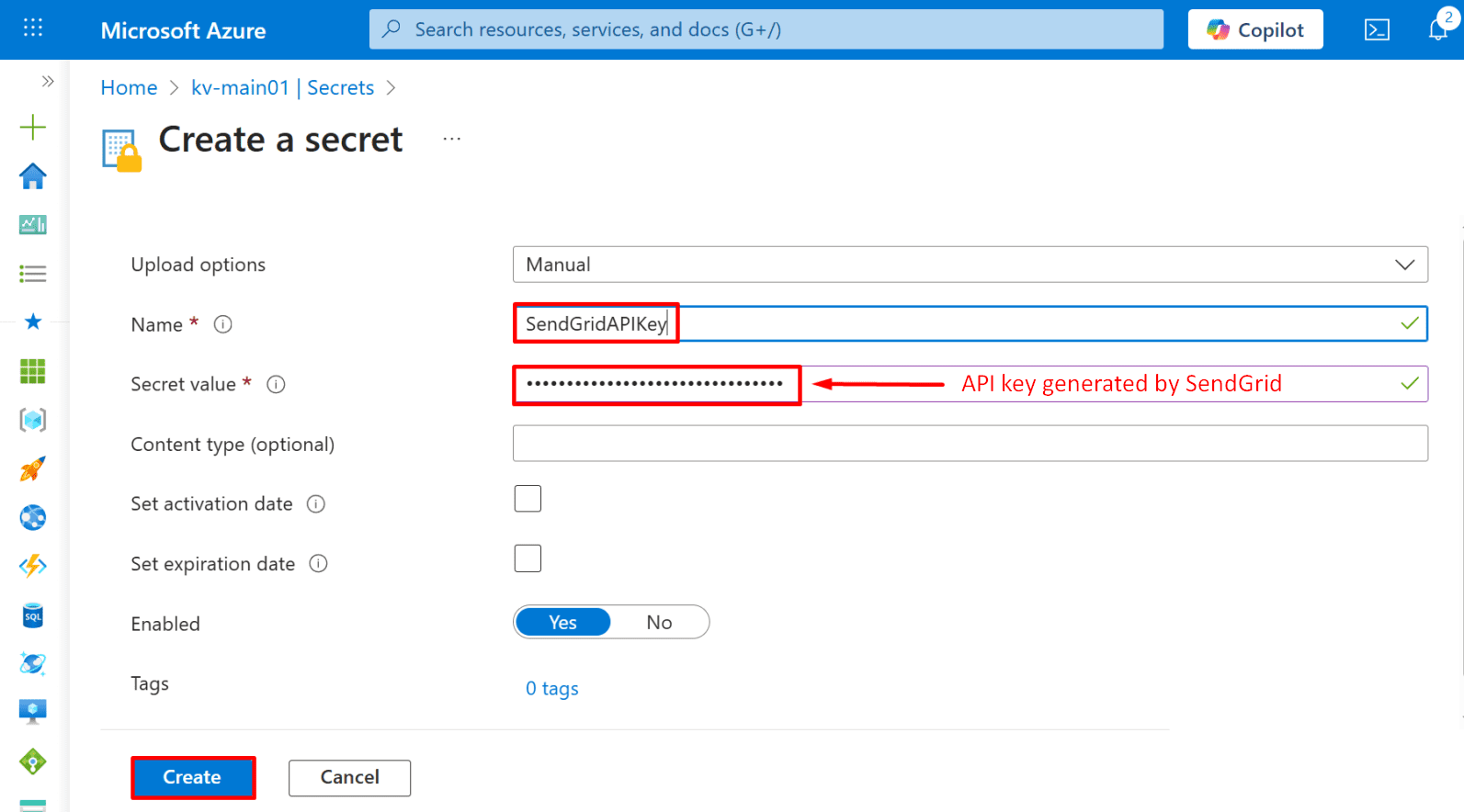
7. Create a Secret in Azure Key Vault for the SendGrid API key.

  • Navigate to Key Vault → Secrets in the Azure portal.
  • Click “Generate/Import” to create a new secret.
  • Enter a name for the secret (e.g., SendGridApiKey).
  • Paste the API key generated by SendGrid into the Value field.
  • Save the secret to store it securely in Key Vault.

*

Execute the SendGrid pipeline to send an email.

1. Secure your pipelines with service connections and Key Vault.

  • Open Your Project Settings
  • Navigate to Organization → Select your project → Project settings.

Note: Service connections are project-specific, meaning each project requires its own service connection configuration.

*

2. Create a New Service Connection.

  • In Project Settings, open the Service connections tab.
  • Select Azure Resource Manager as the connection type.
  • Click Next to continue with the configuration.

*

3. Authenticate to Azure.

  • After clicking Next, an Azure authentication window will appear.
  • Sign in using your Azure portal credentials to authorize the service connection.

*

4. Configure the service connection details.

  • Select your Azure subscription from the list.
  • Choose the appropriate resource group.
  • Provide a name for the service connection to easily identify it later.

*

5. Configure Approvals and Checks.

Approvals and Checks define how Azure DevOps pipelines can use your service connections:

  • Approvals: Require specific users or groups to manually approve the connection before a pipeline can access it.
  • Checks: Apply automated validations such as security scans, Azure Policy compliance, or resource health checks.

Why Use Them:

  • Prevent unsafe or unauthorized deployments
  • Enforce governance, compliance, and security standards
  • Maintain a clear audit trail of approvals and pipeline activity

Best Practice:

  • Use approvals and checks for production-grade pipelines, combining automated checks with manual approval to ensure controlled and secure deployments.

*

6. Copy the Service Connection ID.

  • In Azure DevOps, open your Service connection details.
  • Locate and copy the Service Connection ID, which you will use later for pipeline configuration or access control settings.

*

7. In the Azure portal, open your Key Vault and navigate to Access control (IAM).

*

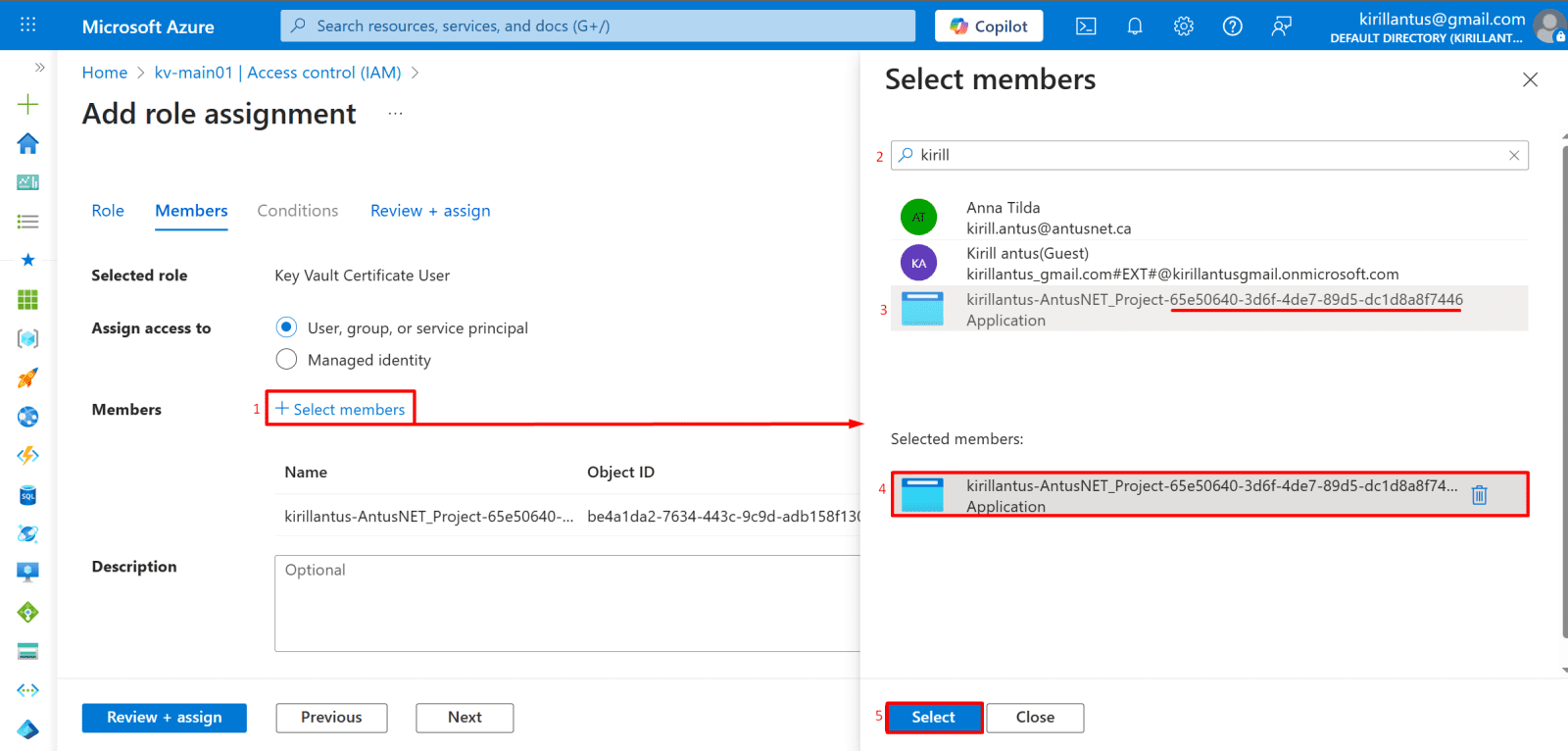
8. Assign the “Key Vault Secrets User” role to your service connection (its managed identity or service principal).

*

9. Under Assign access to, choose User, group, or service principal.

  • Click + Select members.
  • Search for your service connection by name or ID (e.g., kirillantus-AntusNET_Project-65...).
  • Select the service connection and confirm it appears under Selected members.
  • Click Select to add it.

*

10. Review and click Review + assign to finalize the role assignment.

11. Upload secret-main.yaml to Azure DevOps Repo.

Navigate to your Azure DevOps Repo.

  • Click on Files.
  • Select Upload files.
  • Choose your secret-main.yaml file and upload it.

Pipeline behavior:

  • This pipeline triggers automatically whenever changes are pushed to the main branch.
  • It retrieves a secret from Azure Key Vault.
  • The secret is then used to send an email through the configured API.

Copy secret-main.yaml

*

12. Create a New YAML Pipeline from File

  • Navigate to Pipelines in Azure DevOps.
  • Click Create new pipeline.
  • Select Azure Repos Git (YAML) as the source.
  • Choose your project.
  • Select the existing Azure pipeline YAML file.
  • Specify the file path to your YAML file.

*

13. Make sure to replace the placeholder values in the YAML with your own details:

  • displayName – choose a friendly name for your task (e.g., Get secrets from Key Vault).
  • azureSubscription – use your Azure DevOps service connection name.
  • KeyVaultName – enter the name of your Azure Key Vault (e.g., kv-main01).
  • SecretsFilter – specify the exact secret name you want to retrieve (e.g., sendGridKey).
  • email values – update the to and from fields with your desired email addresses.

This ensures the pipeline works correctly with your environment and resources.

*

Important

Agent Types in Azure DevOps

Microsoft-hosted agents

  • Example: vmImage: ubuntu-latest or vmImage: windows-latest
  • Requires hosted parallelism.
  • Will fail if your organization has 0 hosted jobs available.

Self-hosted agents

  • Example: pool: name: Default
  • Runs on your own machine.
  • Works immediately without relying on hosted parallelism.

*

14. Make sure the agent is listening for jobs on your system before pipeline execution.

*

15. Run the pipeline and assign permissions to the pipeline.

  • Click View then Permit

*

16. Verify Email Delivery

After the pipeline runs successfully:

  • The pipeline uses the SendGrid API to send the email.
  • Check the recipient's inbox to confirm that the email was delivered.
  • Optionally, review the pipeline logs to ensure there were no errors during execution.

*

17. Successful email delivery confirms that the pipeline and secret integration are working correctly.

*

Conclusion

You have successfully completed a complex build process to create a secure and functional automation pipeline using your self-hosted agent.

Key achievements include:

  • Resolved Authorization: Fixed Key Vault and SendGrid API Key access and authentication issues.
  • Robust Scripting: Implemented native PowerShell (Invoke-RestMethod) for reliable API communication on Windows.
  • Sender Verification: Established a verified sender identity for your email address in SendGrid.

Your pipeline is now secure, robust, and ready to reliably send automated notifications upon code changes or deployment events.

*

Manage secrets using variable groups instead of the Azure Key Vault.

Using Azure Key Vault (recommended) – Centralizes secret management, supports rotation, and allows pipelines to securely fetch secrets at runtime using managed identities or service connections.

Using Variable Groups – Stores secrets directly in Azure DevOps. Easier to set up, but less secure and not ideal for long-term secret management.

*

1. Create a Variable Group with SendGrid Key.

  • Navigate to Pipelines → Library in Azure DevOps.
  • Click + Variable group to create a new group.

Add the variable(s), for example:

  • Name: SendGridKey
  • Value: <Your SendGrid API Key>
  • Save the variable group by clicking Save.

Note: This variable group allows your pipeline to securely access the SendGrid API key during execution.

*

2. Run the Pipeline Again.

  • Navigate to your pipeline in Azure DevOps.
  • Click Run pipeline to start execution.
  • Confirm that the pipeline completes successfully.
  • Verify that the email has been sent to the intended recipient(s).

Note: Successful execution confirms that the variable group and SendGrid integration are working correctly.

Alert: You can use an Azure DevOps Variable Group to store the SendGrid API Key, it is generally NOT the most secure approach compared to using Azure Key Vault.

*

Bonus: Connect your GitHub account to Azure DevOps.

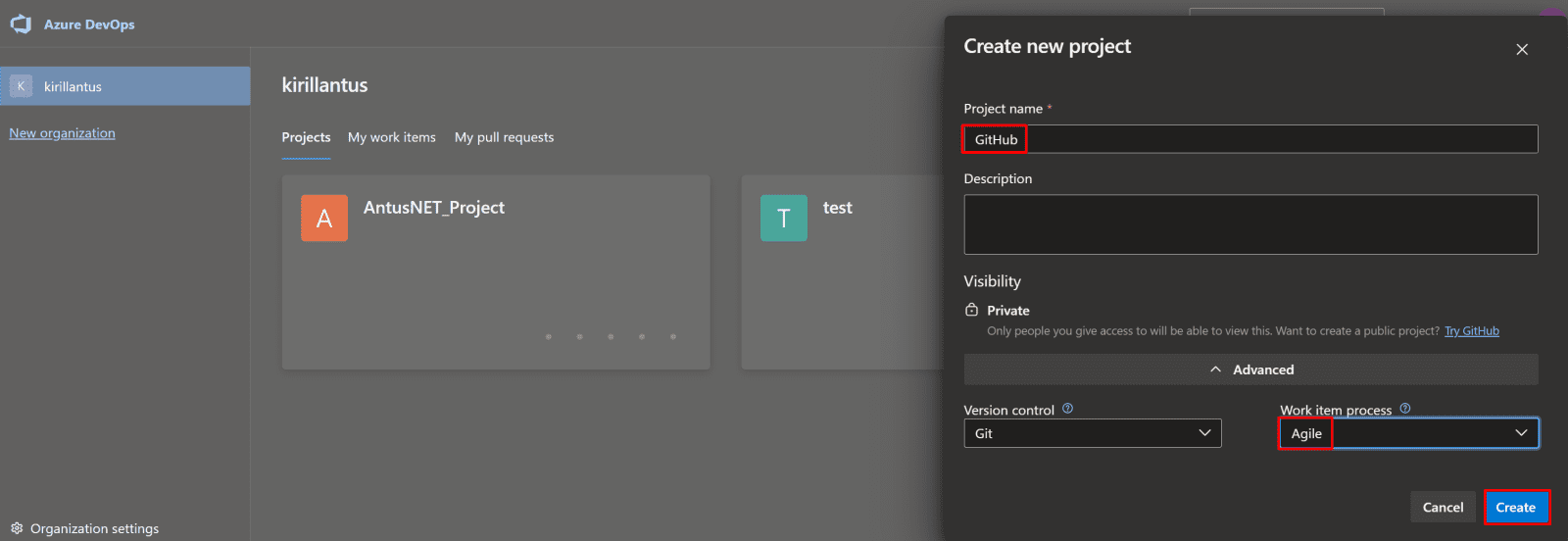
1. Create a New Azure DevOps Project.

  • Click + New project in Azure DevOps.
  • Enter a name for your project.
  • Click Create to finalize the project setup.

Note: Your new project is now ready to host repositories, pipelines, and other resources.

*

2. Click "Project settings"

*

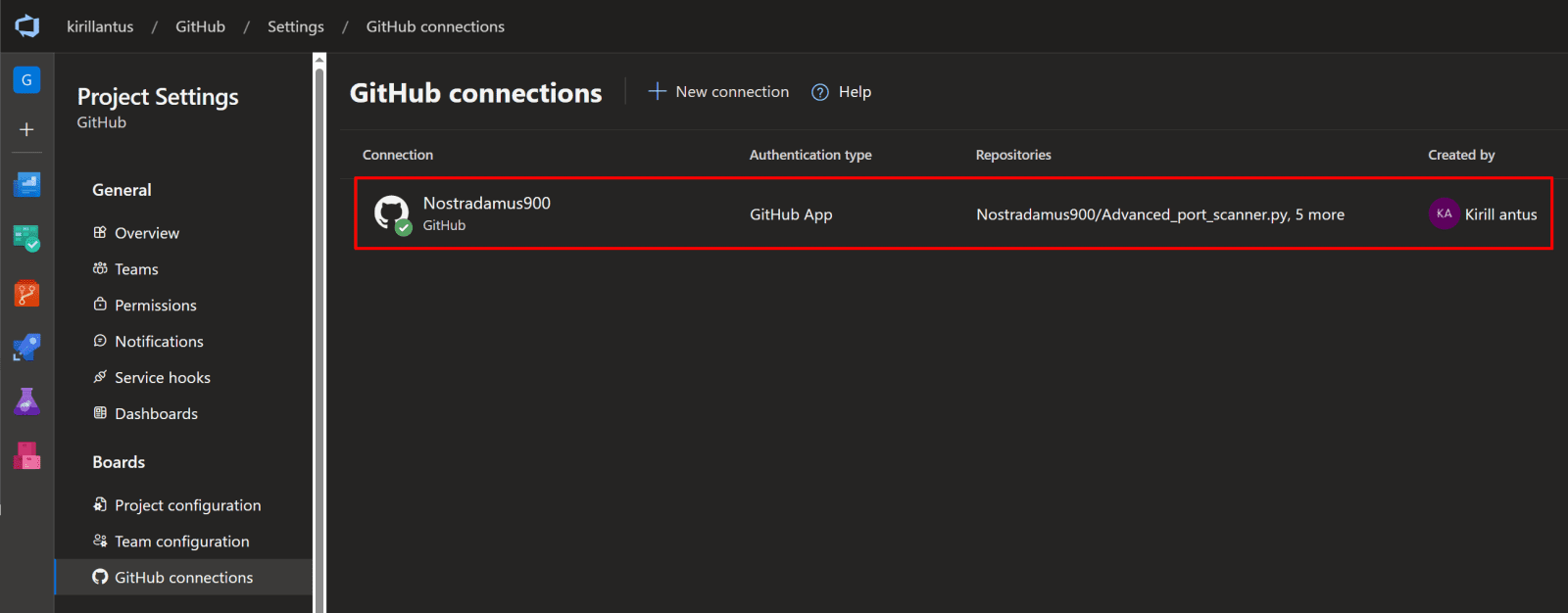
3. Connect Your GitHub Account.

  • Navigate to GitHub connections in Azure DevOps.
  • Click Connect your GitHub account.
  • Follow the prompts to authorize Azure DevOps to access your GitHub account.

Note: This connection allows you to link repositories from GitHub for pipelines, code, and deployments.

*

4. Add GitHub Repositories.

  • After authenticating your GitHub account, navigate to the GitHub connections section.
  • Click Add GitHub repositories.
  • Select the repository or repositories you want to connect to Azure DevOps.
  • Confirm your selection to complete the connection.

Note: Your GitHub repositories are now linked and ready for use in Azure DevOps pipelines and projects.

*

5. Approve, install & authorize Azure Boards.

  • After adding your GitHub repositories, you will be redirected to the Approve, Install & Authorize Azure Boards page.
  • Review the permissions requested by Azure Boards.
  • Click Approve (or Authorize) to allow Azure DevOps to access your GitHub repositories for work item integration.

Note: This step ensures that Azure Boards can track commits, pull requests, and issues linked to your GitHub repositories.

*

6. Verify GitHub Connection.

Your GitHub account and selected repositories are now linked with Azure DevOps.

You can now use your GitHub repositories for pipelines, boards, and other DevOps workflows.

*

Conclusion

Your Azure DevOps environment is now fully configured to run secure, automated pipelines that integrate with external services like GitHub and SendGrid. You can extend this setup for additional pipelines, secrets, and automation workflows as needed.

*

Written by Kirill.A - Azure & Cybersecurity Consultant at AntusNet

➤ Want more? Browse all our Azure implementation guides.

Need help implementing secure Azure solutions?

Contact us for a free consultation.

    error: Content is protected !!