Loading...

Azure Quick Links

Azure Cloud Projects

Private endpoint

Configuring network access to Azure Storage Accounts using a private endpoint & VM disk encryption

Task Details

  • Create Virtual Network
  • Create a Storage Account with a private endpoint. 
  • Create container in storage account.
  • Create a virtual machine and reduce the attack surface by allowing connections only from a specific IP address.
  • Access the storage account from a virtual machine using Azure Storage Explorer.
  • Protect virtual machine disks using encryption keys from Azure Key Vault, accessed through the VM’s managed identity.
  • Bonus: Create a file share in your Azure Storage account and map it to your local system as a network drive.

*

Steps

1. Create a virtual network with three subnets.

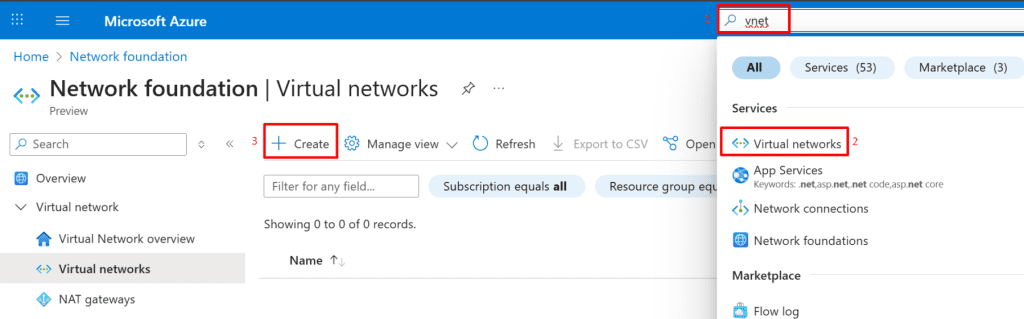
  • Search for "vnet": In the Azure portal search bar, type "vnet" and select "Virtual networks" under Services.
  • Create Virtual Network: Click the "+ Create" button on the Virtual networks page.
Basic Details:

  • Select your "Subscription" and "Resource group".
  • Set "Virtual network name" to "vnet1".
  • Choose your desired "Region".
  • Click "Next"

*

2. Define and configure three subnets in Virtual Network 1 (VNet1)

Storage subnet

  • Add Subnet: On the left side, click "+ Add a subnet."
  • Name Subnet: On the right, set "Name" to "storage"
  • Configure IP Range: Set "Starting address" to "10.0.1.0" and "Size" to "/24 (256 addresses)."
  • Save: Click "Save" at the bottom right.

IT subnet

  • Add Subnet: On the left side, click "+ Add a subnet."
  • Name Subnet: On the right, set "Name" to "IT"
  • Configure IP Range: Set "Starting address" to "10.0.2.0" and "Size" to "/24 (256 addresses)."
  • Save: Click "Save" at the bottom right.

Default subnet

  • Add Subnet: On the left side, click "+ Add a subnet."
  • Name Subnet: On the right, set "Name" to "default"
  • Configure IP Range: Set "Starting address" to "10.0.3.0" and "Size" to "/24 (256 addresses)."
  • Save: Click "Save" at the bottom right.

*

3. After deploying the three subnets, click Review + Create to deploy the virtual network and its subnets.

*

4. Create a Storage Account with a Private Endpoint for secure, private access.

  • Search for "storage": In the Azure portal search bar, type "storage".
  • Select "Storage accounts": Under Services, click on "Storage accounts".
  • Create Storage Account: On the Storage accounts page, click the "+ Create" button.

Note: Creating a Storage Account with a Private Endpoint ensures that access to the storage resource stays entirely within your Azure virtual network. This eliminates exposure to the public internet, enhances security, and helps meet compliance requirements. Always ensure your DNS is properly configured to resolve the private endpoint IP to avoid connectivity issues.

*

5. In the Basics tab, provide a unique name for the Storage Account and other details.

Project Details:

  • Select your "Subscription"
  • Choose your "Resource group

Instance Details:

  • Enter "sa783709" as the "Storage account name".
  • Select your "Region" (e.g., "(US) East US").
  • Choose "Standard" for "Performance".
  • Select "Locally-redundant storage (LRS)" for "Redundancy".

Next: Click the "Next" button at the bottom.

Note: LRS is generally cheaper than ZRS due to its limited redundancy scope.

Redundancy Options:

  • Locally Redundant Storage (LRS): Copies your data synchronously three times within a single physical location (data center).

  • Zone-Redundant Storage (ZRS): Copies your data synchronously across three Azure Availability Zones within the primary region, offering higher durability.

*

6. In the Networking tab, configure the private endpoint to allow access only from the storage subnet, then click Review + create.

  • Navigate to Networking: In the "Create a storage account" wizard, click on the "Networking" tab.
  • Disable Public Access: Select "Disable public access and use private access" under "Network access."
  • Add Private Endpoint: Click on "+ Add private endpoint."
  • Create Private Endpoint (right-hand pane):
  • Select your "Subscription", "Resource group", and "Location".
  • Set "Name" to "storage_private_endpoint".
  • For "Storage sub-resource", choose "blob".
  • Select your "Virtual network" (e.g., vnet1 ).
  • Select your "Subnet" (e.g., "storage").
  • Confirm "Integrate with private DNS zone" is "Yes".

OK: Click "OK" to create the private endpoint.

Note: See full list here: Azure Private Endpoint Supported Services

Important - Network Routing Preference (in Network Routing section): By default, storage accounts use Microsoft network routing, keeping traffic on Microsoft’s global backbone. This can improve performance but may increase inter-region egress costs. To reduce costs in some scenarios, switch to Internet routing, which hands off traffic to a transit ISP sooner.

*

7. Create a container inside the Storage Account named sa783709.

  • Navigate to Containers: In the storage account sa783709 blade, click on "Containers" under "Data storage" in the left-hand menu.
  • Add Container: Click the "+ Add container" button.
  • Name Container: In the "New container" pane, type "cont1" into the "Name" field.

Create: Click the "Create" button.

Note: Use lifecycle management rules to automatically move blobs to Cool or Archive tiers to reduce storage costs based on access patterns.

  • Go to your storage account in the Azure portal.
  • Under Data Management, select Lifecycle Management.
  • Create rules to automatically move blobs to Cool or Archive tiers based on conditions like last modified date or access patterns.

⚠ This helps optimize costs by storing rarely accessed data in lower-cost tiers.

*

8. Deploy a virtual machine within the Storage subnet of vnet1 virtual network to enable secure, private communication via the private endpoint.

  • Search for "vm": In the Azure portal search bar, type "vm".
  • Select "Virtual machines": Under Services, click on "Virtual machines".
  • Create Virtual Machine: On the Virtual machines page, click the "+ Create" button.

*

9. Provide basic vm1 settings as follows:

Instance details:
• Virtual machine name : Enter vm1
• Region : Select (US) East US
• Image : Select Windows Server 2022 Datacenter : Azure Edition - x64 Gen2 
• VM architecture: Select x64
• Size : Select Standard_B2s

Administrator Account:
• Username : Enter a username
• Password : Enter a password
• Confirm password : Re-enter password

Inbound Port rules: 
• Public inbound ports : Select Allow selected ports
• Select inbound ports: Select RDP(3389)

*

10. Click Next to proceed to the Disks tab and configure your desired disk settings.

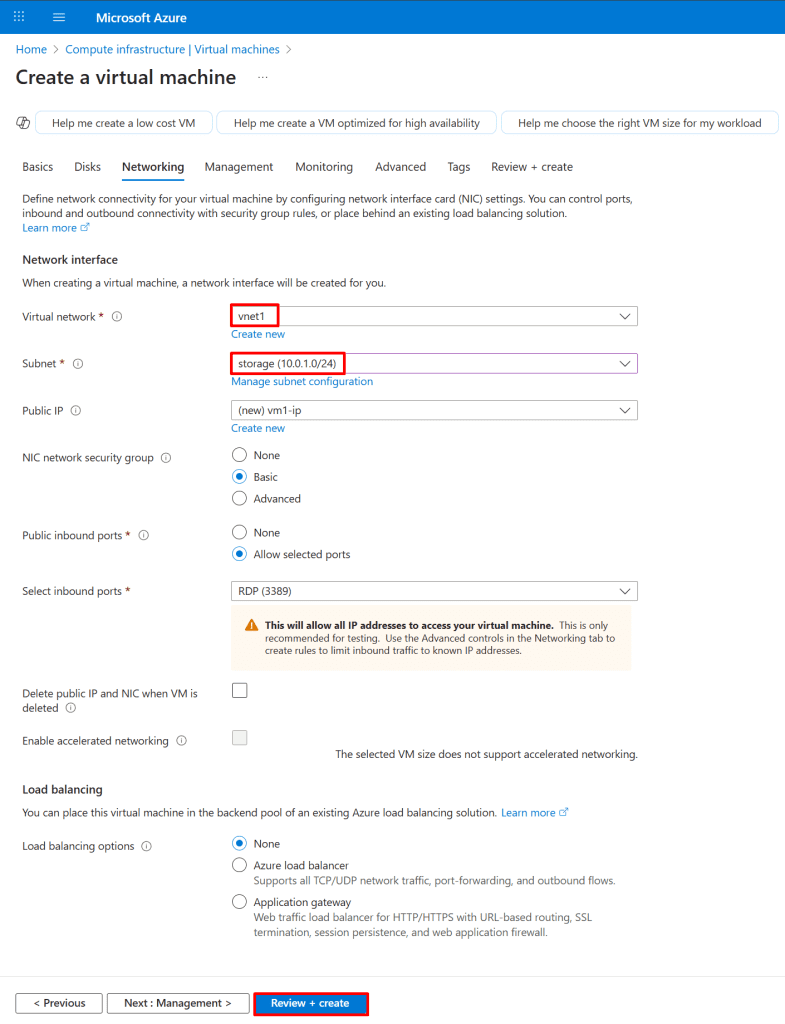
11. On the Networking tab, assign the vm1 virtual machine to the Storage subnet, apply the specified settings, and then click Review + Create.

Networking Tab: Ensure you are on the "Networking" tab of the "Create a virtual machine" wizard.

  • Virtual Network: Select "vnet1" from the "Virtual network" dropdown.
  • Subnet: Select "storage (10.0.1.0/24)" from the "Subnet" dropdown.
  • Public Inbound Ports: Choose "Allow selected ports".
  • Select Inbound Ports: From the dropdown, select "RDP (3389)".
  • Review + create: Click the "Review + create" button at the bottom.

*

12. On vm1, reduce the attack surface by allowing connections only from a specific IP address. Delete the existing RDP rule and create a new inbound rule that allows RDP access exclusively from the IP address 84.239.16.4.

Note: The IP address 84.239.16.4 is the public IP of my local VM

  • Navigate to Network Settings: In your VM's blade (e.g., vm1 | Network settings), click "Network settings" in the left-hand menu.
  • Delete existing Inbound RDP Rule
  • Create a new Rule: To add a new rule, click "+ Create port rule" above the "Inbound port rule" section, and then select "Inbound port rule" from the dropdown.

Ensure you are on the "Network settings" page for your VM (vm1 | Network settings).

Add Inbound Security Rule: The panel on the right would have opened after clicking "Create port rule" or editing a rule in the previous step.

Source:

  • Select "IP Addresses" for "Source".
  • Enter "84.239.16.4" in "Source IP addresses/CIDR ranges".

Destination:

  • Select "IP Addresses" for "Destination".
  • Enter "10.0.1.3" in "Destination IP addresses/CIDR ranges".

Service/Protocol:

  • Select "RDP" for "Service".
  • Action: Ensure "Allow" is selected.

Add: Click the "Add" button at the bottom.

Note: The IP address 10.0.1.5 is the private IP of VM1

Note: The IP address 84.239.16.4 is the public IP of my local VM

*

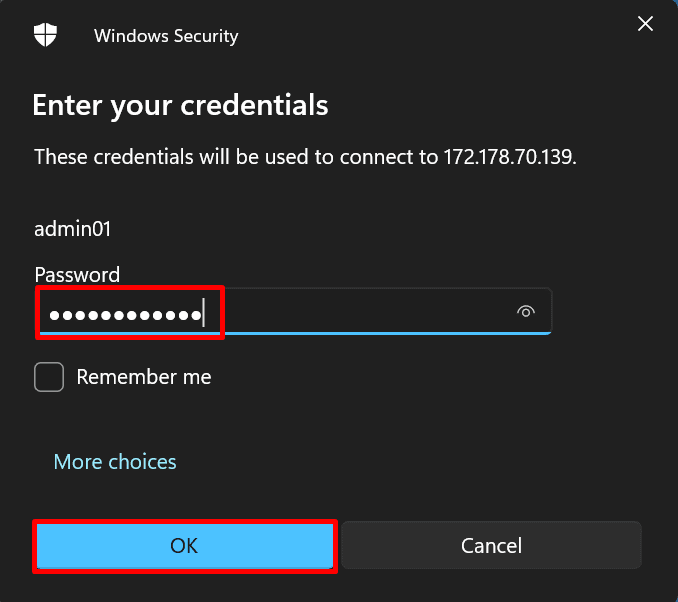
13. Log in to vm1 from the trusted IP address configured earlier.

*

14. Check DNS Resolution for Azure Storage Account Endpoint

To verify the DNS resolution of the Azure Storage Account endpoint named sa783709, run the following command:

Command: nslookup sa783709.blob.core.windows.net

Note: sa783709 is the storage account name and 10.0.1.4 is a private IP of the private endpoint.

*

15. Connect to you storage account with storage explorer

Note: Download and install Azure storage explorer from this link

https://azure.microsoft.com/en-us/products/storage/storage-explorer/?msockid=0c177e55cbd86c252fbc687dca446df1#Download-4

*

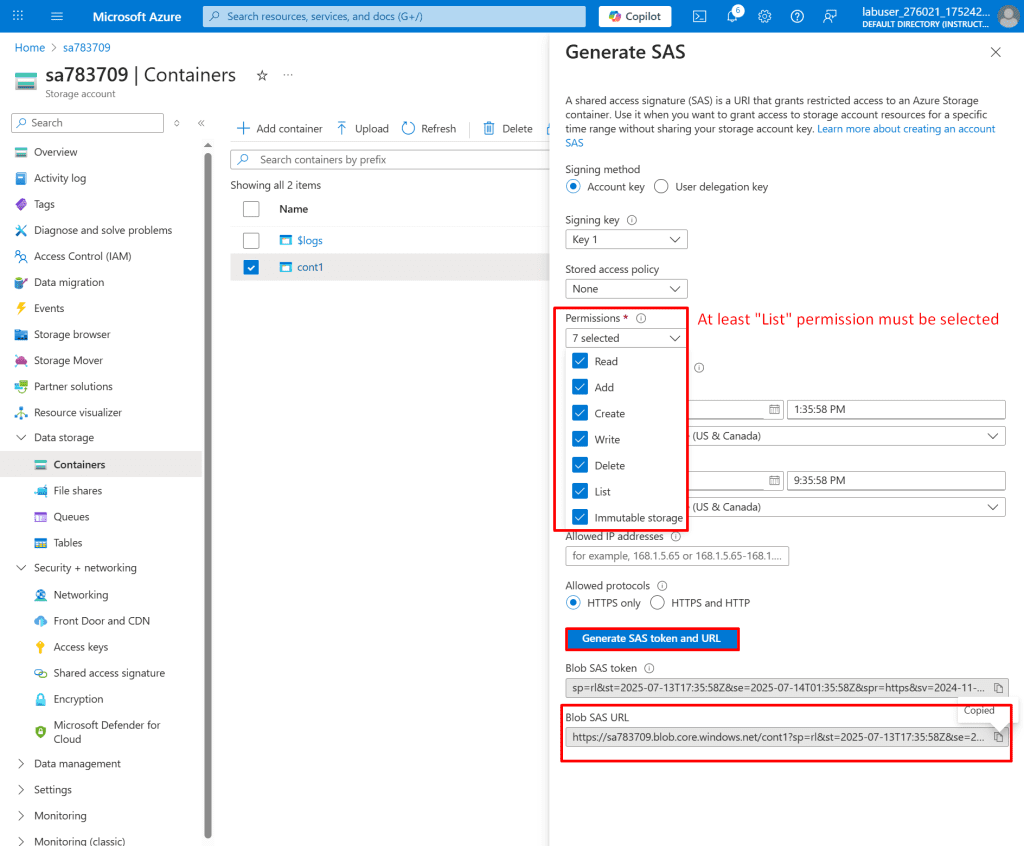
16. Generate a SAS token for the container cont1 in your storage account.

Note: At least "List" permission must be selected.

Note: Avoid sharing a SAS token scoped to the entire storage account - this grants broad access and increases risk. Always generate SAS tokens scoped to the specific container or blob required.

  • Select the container.
  • Click the "..." (ellipsis) button.
  • Choose "Generate SAS."

  • Select necessary permissions (at least "List").
  • Click "Generate SAS token and URL."
  • Copy the "Blob SAS URL." (You will need it later)

*

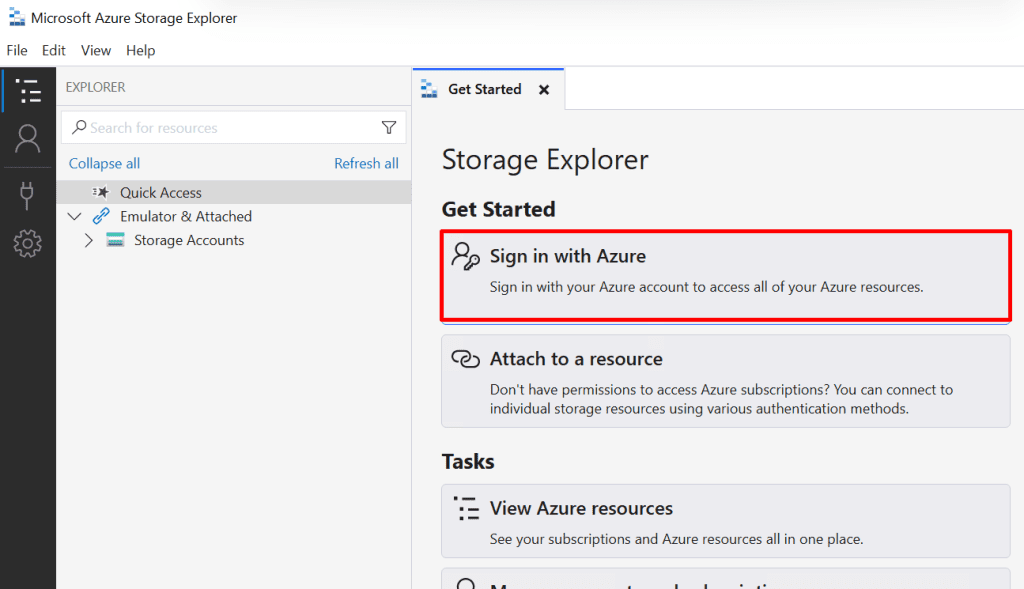
17. Log in to the Azure Cloud Portal using Azure Storage Explorer with your username and password.

*

18. Your default web browser will open with the Azure Portal login page.

Note: Do not close this window, or you will have to authenticate again.

*

19. Connect to the cont1 container using the Blob SAS URL you generated earlier.

*

20. Successfully connected to the cont1 container in the storage account.

Note: Once connected, you can perform a variety of management and data operations directly from Azure Storage Explorer:

  • Upload files/folders → Add application files, logs, or test data to the container.
  • Download files → Retrieve stored blobs to your local machine.
  • Organize data → Create virtual folders (by prefix naming convention) and manage blob structure.
  • View/Edit blob properties & metadata → Inspect or modify access tiers (Hot, Cool, Archive), content type, and custom metadata.
  • Set Access Level → Configure the container’s public access (Private, Blob, Container).
  • Generate SAS tokens → Create time-bound, permission-controlled URLs for secure sharing.
  • Delete/Replace blobs → Manage lifecycle by removing outdated or unnecessary data.
  • Copy/Move blobs → Transfer data between containers or even across storage accounts.

21. Secure your virtual machine disks using encryption keys managed by Azure Key Vault.

Create a Key Vault using the following parameters:

  • Search for "Key vaults" in the Azure portal search bar.
  • Select "Key vaults" under "Services."
  • Click "+ Create" on the Key vaults page.

*

22. Fill in Project and Instance details:

  • Select Subscription and Resource group.
  • Enter a Key vault name (e.g., kv4567).
  • Choose a Region (e.g., "East US").

Click "Next."

*

23. Grant your user permission to manage keys in the Key Vault by assigning the appropriate role using IAM (Identity and Access Management).

  • Navigate to "Access control (IAM)" for your Key Vault.
  • Click "Add role assignment."

  • Choose Key Vault Crypto Officer role
  • Click "Next"

  • Click "+ Select members."
  • Choose the desired users/identities from the list.
  • Click "Select."

  • Click "Review + assign"

*

24. Create an encryption key in the Key Vault that will be used to encrypt the disk of VM1.

  • Navigate to "Keys" under your Key Vault.
  • Click "+ Generate/Import."

  • Enter a "Name" for the key (e.g., "MyKey").
  • Configure options like Key type and RSA key size (if applicable).
  • Click "Create."

*

25. Configure VM1 with a system-assigned managed identity to securely access the encryption key from Azure Key Vault.

  • Go to your VM in Azure.
  • Select "Identity" under "Security."
  • Turn "System assigned" status "On.
  • Click "Save"

Note: Assigning a system-assigned managed identity to VM1 allows it to securely authenticate to Azure Key Vault without storing credentials in code or configuration. This identity can be granted access to the encryption key via Key Vault access policies or RBAC.

*

26. Assign the Key Vault Crypto Officer role to the managed identity of VM1.

  • Choose Key Vault Crypto Officer role
  • Click "Next"

  • Choose "Managed identity" for "Assign access to."
  • Click "+ Select members."
  • Find and select your specific managed identity (e.g., "vm1").
  • Click "Select" to confirm.
  • "Review + assign" to complete.

*

27. Enable disk encryption on VM1

  • In Azure, select your virtual machine (e.g., "vm1").
  • Go to Disks: In the left-hand menu, under "Settings," click "Disks."
  • Review Disk Info: View details of your OS disk.
  • Click the "Additional settings" gear icon for more disk configuration options.

*

28. In the Additional settings tab, select the key stored in Azure Key Vault.

  • Go to VM > Disks > Additional settings > Disk settings.
  • Select "OS disk" (or desired disk) to encrypt.
  • Select your Key Vault, Key, and Key Version.
  • Click "Save."

*

29. The encryption was successful.

*

Bonus: Create a file share in your Azure Storage account and map it to your local system as a network drive.

1. Create a file share from your Azure Storage account.

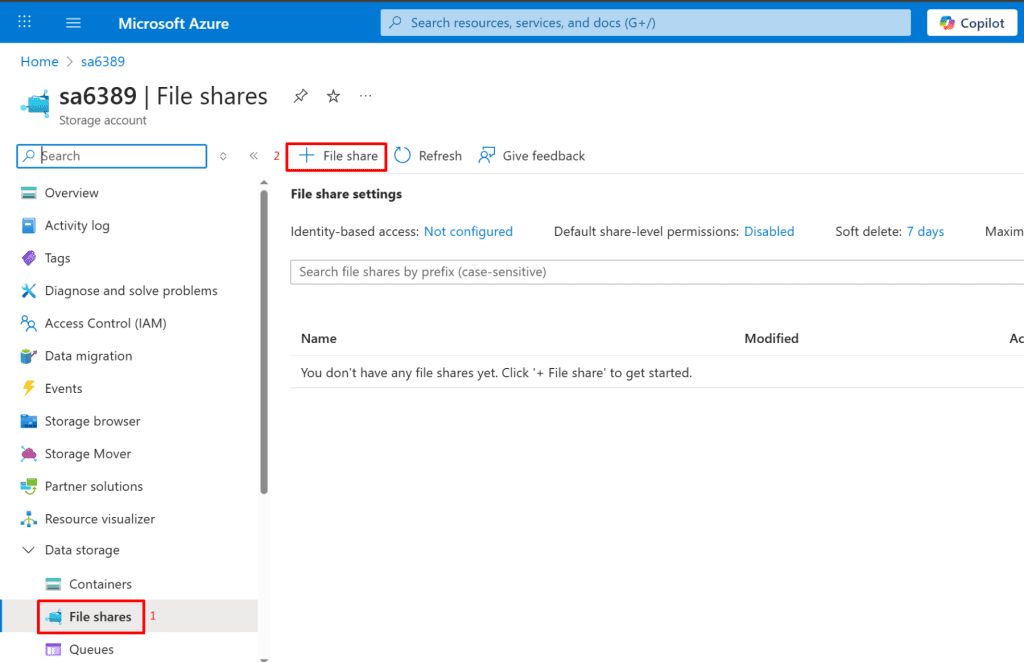
  • In the Azure portal, open your storage account (e.g., "sa6389").
  • In the left-hand menu, under "Data storage," click "File shares."
  • Click the "+ File share" button to begin creating a new file share.

*

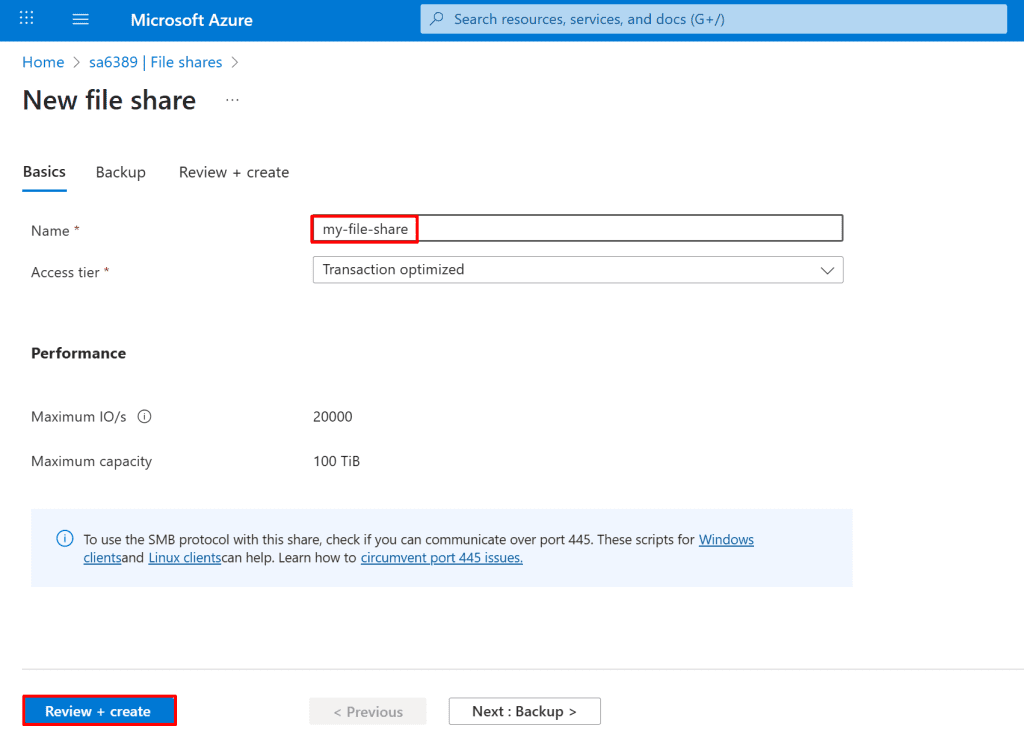
2. Give a name to your file share, then click "Review + create" then Create

*

3. Retrieve the connection string for the file share.

  • Click on your created file share
  • In overview blade click "Connect"
  • Choose Windows
  • Click the "Show Script" button, then copy the Azure-generated PowerShell script.

*

4. Map the file share as a network drive on your local system using the Azure-provided PowerShell script.

  • Copy and paste the PowerShell script provided by Azure into your local PowerShell session.

*

Alternative Connectivity Option:
In addition to Private Endpoints, Azure also supports Service Endpoints for securing access to storage accounts. Service Endpoints allow resources in a virtual network to securely connect to Azure Storage over the Azure backbone while still using the service’s public IP address. While easier to set up, Service Endpoints provide less isolation than Private Endpoints, since the storage account remains reachable via its public endpoint. Choose Service Endpoints if you need simpler configuration or have multiple subnets accessing the same storage account and do not require full private network isolation.

*

Conclusion
In this demo, we deployed a secure Azure infrastructure by creating a virtual network, a storage account with a private endpoint, and a virtual machine with restricted access. We uploaded data to a storage container and securely accessed it from the VM. Finally, we enhanced data protection by encrypting the VM's disks using customer-managed keys stored in Azure Key Vault, accessed via the VM’s managed identity. This demonstrates a comprehensive approach to securing both data at rest and network access in Azure.

*

Written by Kirill.A - Azure & Cybersecurity Consultant at AntusNet

➤ Want more? Browse all our Azure implementation guides.

Need help implementing secure Azure solutions?

Contact us for a free consultation.

    error: Content is protected !!