Loading...

Azure Quick Links

Azure Cloud Projects

Active Directory Lab

Building a Windows Active Directory Lab with Internet Access.

Task Details

1. Download OS Evaluation ISO Images from Microsoft 

2. Create virtual machines using your preferred hypervisor (Hyper-V, VMware, VirtualBox). *

3. Configure static IP addresses for both domain controllers and client machines, and rename each system as required..

4. Proceed with the Active Directory forest and domain configuration on DC1 and DC2.

5. Join the Windows clients to the domain.

6. Enable internet access in your domain.

*

Lab Setup

This lab simulates a minimal on-premises Active Directory environment required for hybrid Azure and identity security scenarios.

Note: This guide assumes you already know how to create virtual machines using your preferred hypervisor (VMware, Hyper-V, or VirtualBox). VM creation steps are intentionally omitted.

Virtual Machines

  • DC1 - Windows Server 2025 - 192.168.37.100
  • DC2 - Windows Server 2025 - 192.168.37.101
  • Client11 - Windows 11 Enterprise - 192.168.37.102
  • Client10 - Windows 10 - 192.168.37.103

*

Steps

Download OS Evaluation ISO Images.

All operating systems used in this lab are available as evaluation ISOs from Microsoft Evaluation Center.

*

Required Downloads:

  • Windows Server 2025 (Evaluation)
  • Windows 11 Enterprise
  • Windows 10 Enterprise

*

Create virtual machines using your preferred hypervisor (Hyper-V, VMware, VirtualBox).

This guide assumes you already know how to create virtual machines using your preferred hypervisor (VMware, Hyper-V, or VirtualBox). VM creation steps are intentionally omitted.

*

Configure static IP addresses for both domain controllers and client machines, and rename each system as required.

Static IP addresses are required for domain controllers to ensure stable DNS resolution, reliable authentication, and consistent Active Directory replication.

Note: In VMware, use NAT networking for all virtual machines. NAT provides internet access for updates and downloads while keeping the lab environment isolated from the physical network, preventing IP conflicts and unintended exposure.

DC1 - Windows Server 2025 - 192.168.37.100

1. Log in as administrator or as a user with administrative privileges.

*

2. Assign static IP.

Note: Your IP range and subnet may differ. In this guide, the subnet used is 192.168.37.0/24. VMware will configure the network automatically, but you should verify and assign static IP addresses to each VM as required for the lab.

Go to Settings → Network & Internet → Ethernet and edit the IP setting as follows and click "save."

  • IP address: 192.168.37.100
  • Subnet mask: 255.255.255.0
  • Gateway: 192.168.37.2
  • Preferred DNS: 192.168.37.100 (or 127.0.0.0)

Note: Use the ipconfig /all command to determine the default gateway IP provided by VMware.

*

3. Rename the system to DC1.

Go to Settings → System → About → Rename this PC

Note: A restart is required after renaming each system.

*

4. After the restart, confirm that the changes have been applied.

*

DC2 - Windows Server 2025 - 192.168.37.101

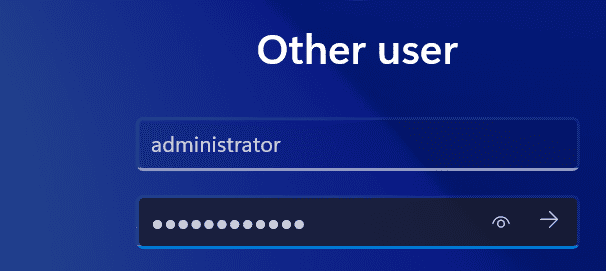
1. Log in as administrator or as a user with administrative privileges.
*

2. Assign static IP.

Go to Settings → Network & Internet → Ethernet and edit the IP setting as follows and click "save."

  • IP address: 192.168.37.101
  • Subnet mask: 255.255.255.0
  • Gateway: 192.168.37.2
  • Preferred DNS: 192.168.37.100 (IP of DC1)

*

3. Rename the system to DC2.

Go to Settings → System → About → Rename this PC

Note: A restart is required after renaming each system.

*

4. After the restart, confirm that the changes have been applied.

*

Client11 - Windows 11 Enterprise - 192.168.37.102

1. Log in as administrator or as a user with administrative privileges.

*

2. Assign static IP.

Go to Settings → Network & Internet → Ethernet and edit the IP setting as follows and click "save."

  • IP address: 192.168.37.102
  • Subnet mask: 255.255.255.0
  • Gateway: 192.168.37.2
  • Preferred DNS: 192.168.37.100 (IP of DC1)

*

3. Rename the system to Client11.

Go to Settings → System → About → Rename this PC

Note: A restart is required after renaming each system.

*

4. After the restart, confirm that the changes have been applied.

Client10 - Windows 10 Enterprise - 192.168.37.103

1. Log in as administrator or as a user with administrative privileges.


2. Assign static IP.

Go to Settings → Network & Internet → Properties and edit the IP setting as follows and click "save."

  • IP address: 192.168.37.103
  • Subnet mask: 255.255.255.0
  • Gateway: 192.168.37.2
  • Preferred DNS: 192.168.37.100 (IP of DC1)


3. Rename the system to Client10.

Go to Settings → System → About → Rename this PC

Note: A restart is required after renaming each system.


4. After the restart, confirm that the changes have been applied.

*

Proceed with the Active Directory forest and domain configuration on DC1 and DC2.

DC1 - Windows Server 2025 - 192.168.37.100

1. In Server Manager, add Active Directory Domain Services.

  • Go to Manage → Add roles and features

*

  • Click next four times
  • Select "Active Directory Domain Services."
  • On the pop-out screen click on "Add Features" (it will add the required features)

*

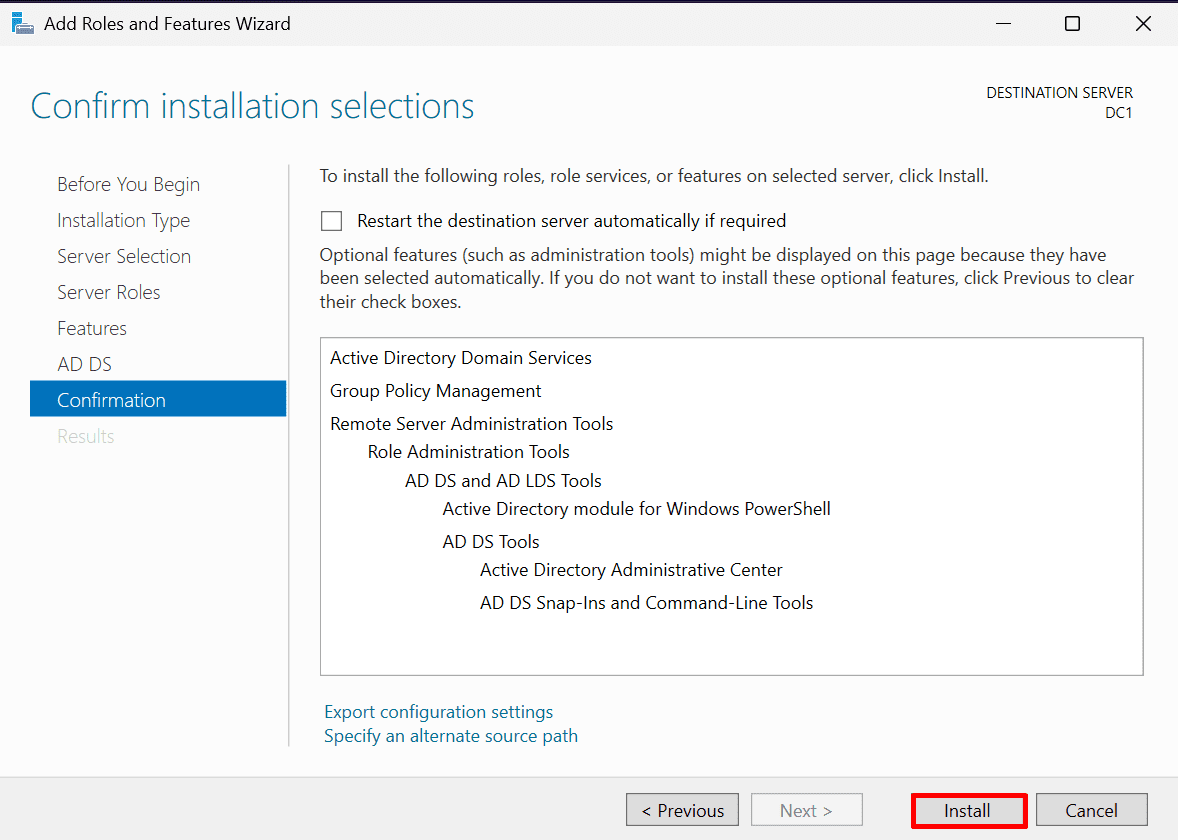
  • Click "Next" three times
  • Click "Install"

*

*

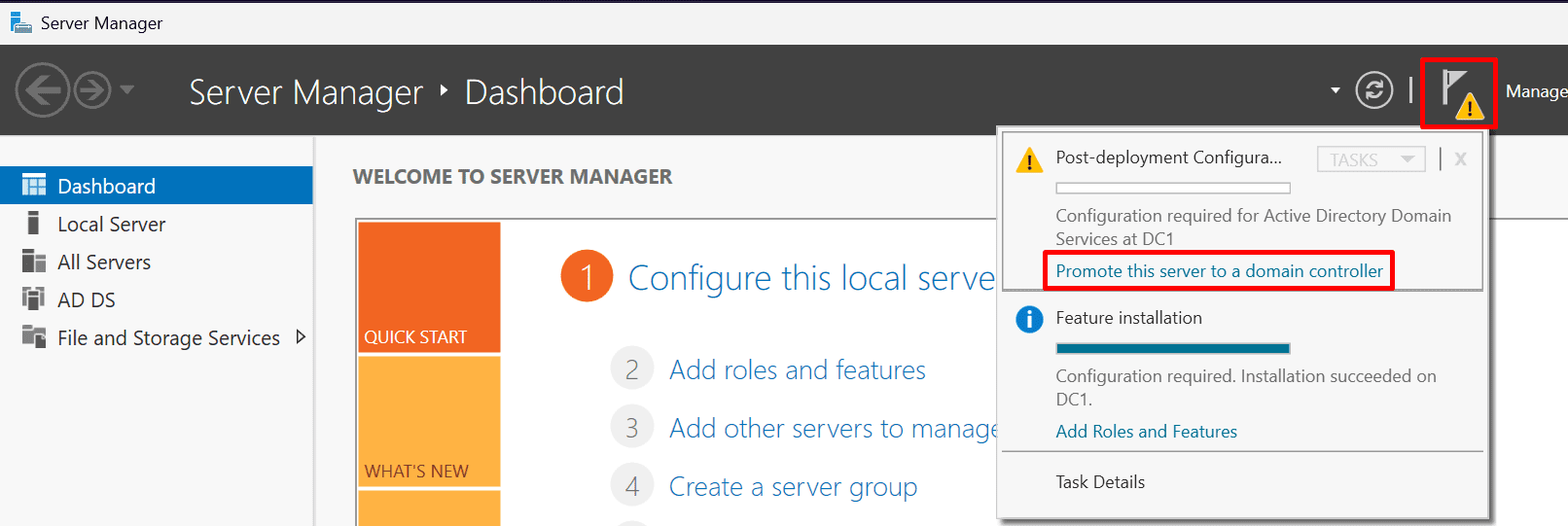
2. After a successful installation, click the yellow warning triangle in Server Manager, then select “Promote this server to a domain controller.”

*

3. Select "Add a new forest" and choose a domain name.

  • Click "Next"

Note: In this example, I will use antusnet.ca as the domain name, but you can choose any name you like (for example, mydomain.int, etc.).

*

4. Create the DSRM password and click "Next"

Note: The DSRM (Directory Services Restore Mode) password is required to access the domain controller in recovery scenarios, such as restoring Active Directory after a failure or performing offline maintenance. It provides administrative access when Active Directory services are not running.

*

5. This warning is normal so you can safely ignore it and click "Next"

*

6. After it generates the NetBIOS name, click "Next" three times.

*

7. Click install.

Note: The warning message you see is normal. After the installation completes, the server will restart automatically.

*

8. Log in to domain as administrator@antusnet.ca

Note: The username format should be administrator@mydomain.int

If you log in using just "administrator" as the username, you will sign in to the local system, not the domain.

9. Create two domain users: User10 (for Windows 10) and User11 (for Windows 11).
You will need these accounts when joining the Windows clients to the domain.

Go to → Tools → Active directory users and Computers.

*

10. Right-click on Users, then select New → User.

*

11. Fill up the user details, then click next.

*

12. Create a password for User11, then click "Next" and "Finish".

Note: I will choose “Password never expires” for demonstration purposes, but in a production environment, always follow best security practices.

*

13. Follow the same steps to create the domain user User10 for Windows 10.

*

DC2 - Windows Server 2025 - 192.168.37.101

1. Set up DC2 as a second domain controller in the existing domain.

In Server Manager, add Active Directory Domain Services.

Go to Manage → Add roles and features

Note: Follow steps 1-2 again to add the Active Directory Domain Services role on this server.

*

2. After a successful installation, click the yellow warning triangle in Server Manager, then select “Promote this server to a domain controller.

*

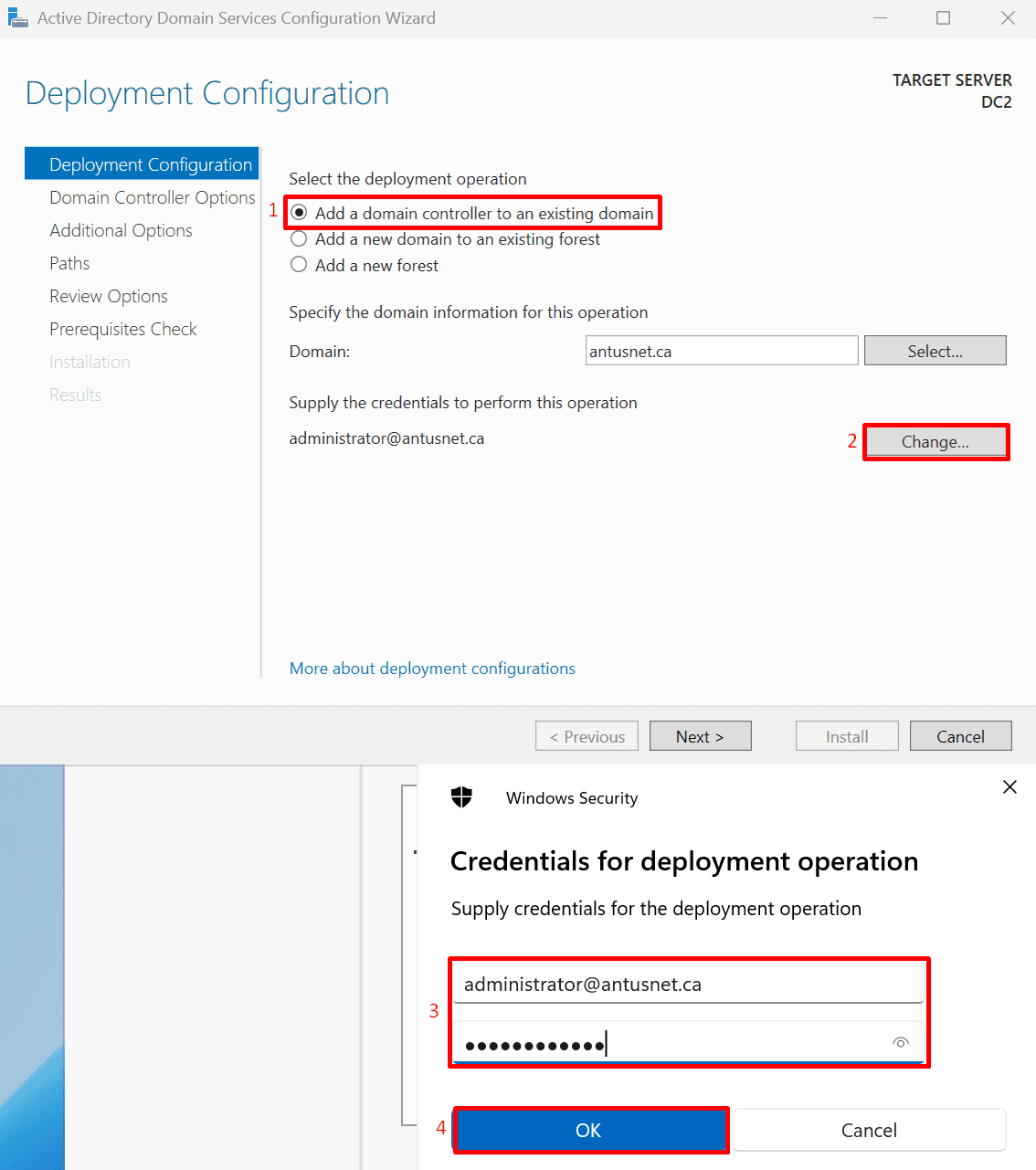
3. Choose the "Add a domain controller to an existing domain"

Click "Change" and enter your domain username and password, then click "Next".

*

4. Create the DSRM password and click "Next"

*

5. This warning is normal so you can safely ignore it and click "Next"

  • Click "Next" four times.

*

6. Click install.

Note: The warning message you see is normal. After the installation completes, the server will restart automatically.

*

Join the Windows clients to the domain.

Client11 - Windows 11 - 192.168.37.102

1. Log in as administrator.

Go to Settings → System → About → Domain or workgroup

*

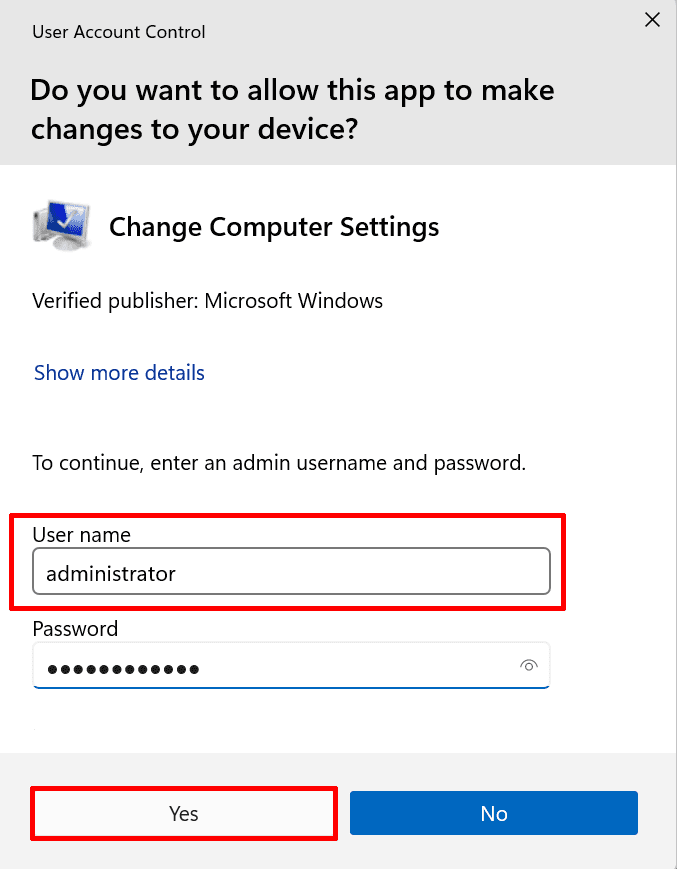
2. If you are logged in as a regular user, you will need to provide administrative credentials to change the “Domain or Workgroup” settings.

*

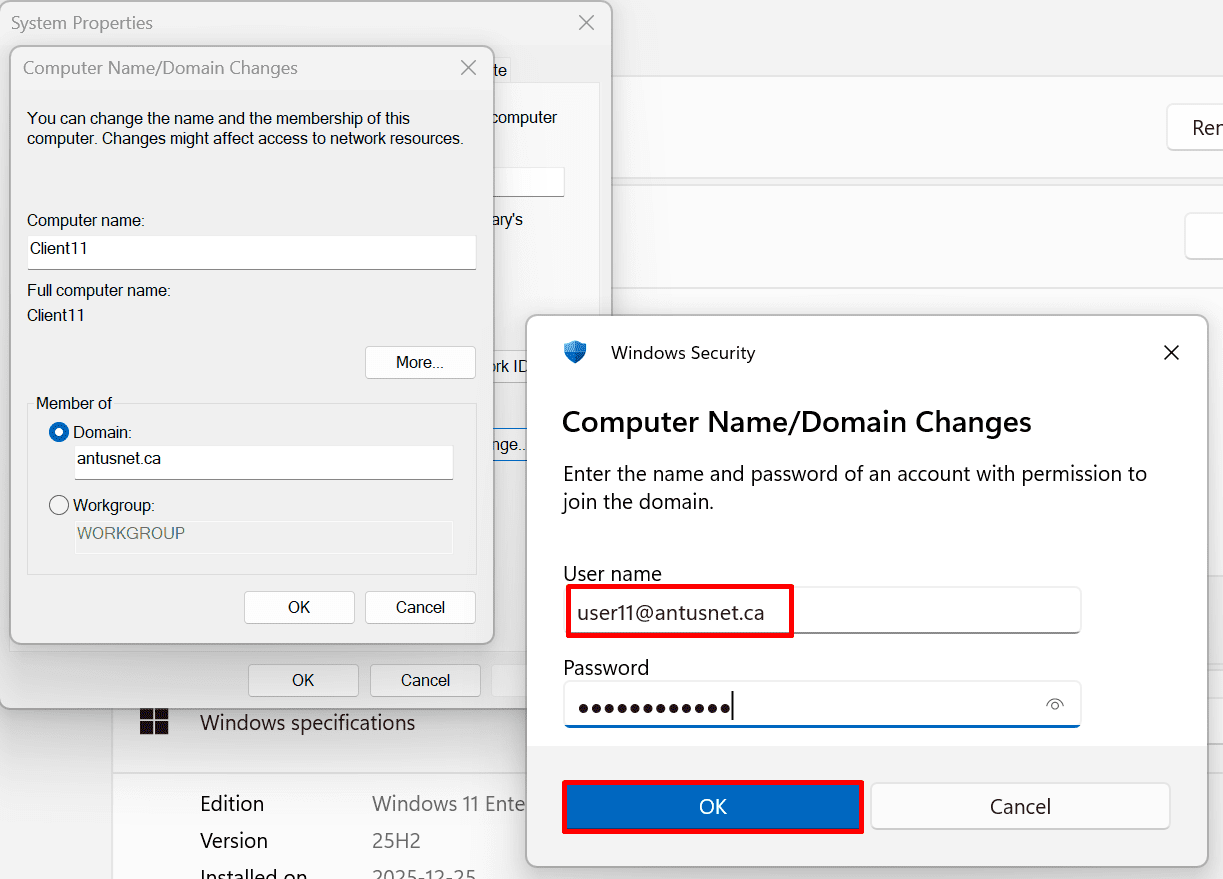
3. Change the “Member of” setting to Domain and enter the domain name, in this example: antusnet.ca.

  • Provide Domain user credentials.
  • Click OK twice.

*

4. To confirm, log in as the domain user.

*

Client10 - Windows 10 - 192.168.37.103

1. Log in as administrator.

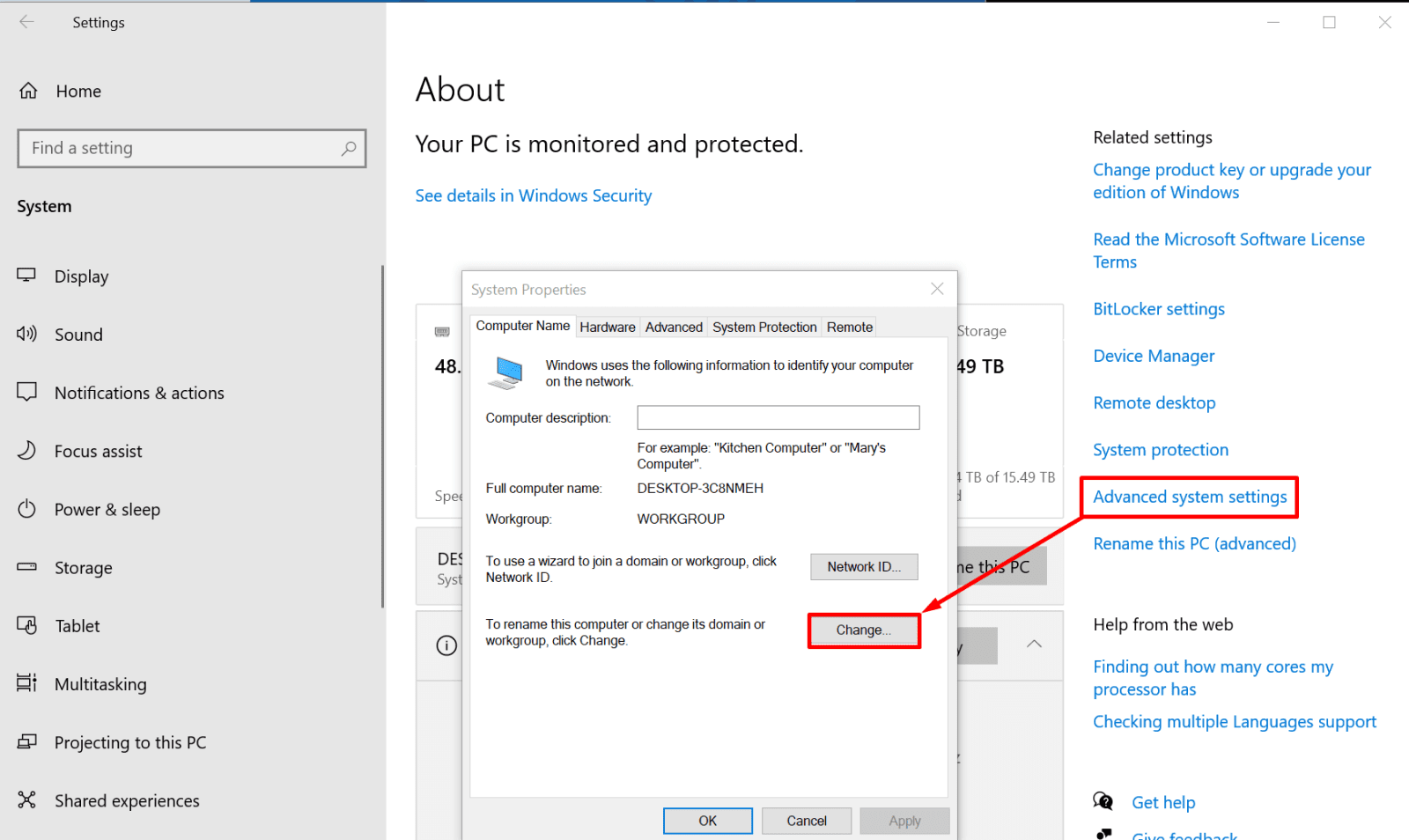
Go to Settings → System → About → Advanced system settings → Computer name tab → change


3. Change the “Member of” setting to Domain and enter the domain name, in this example: antusnet.ca.

  • Provide Domain user credentials.
  • Click OK twice.

*

4. To confirm, log in as the domain user.

Also check if a connection was established on DC1.

*

Enable internet access in your domain.

1. On DC1, open DNS manager.

*

2. Right-click your server → Properties → Forwarders tab.

*

3. Click edit and enter 192.168.37.2 (the default gateway of your VMware) as a forwarder for your DNS queries.

  • Click OK → Apply → OK

*

4. Allow Outbound DNS on DC1

Run PowerShell as Admin:

Copy commands

# Allow outbound UDP 53

New-NetFirewallRule -DisplayName "Allow DNS Outbound UDP" -Direction Outbound -Protocol UDP -RemotePort 53 -Action Allow

# Allow outbound TCP 53

New-NetFirewallRule -DisplayName "Allow DNS Outbound TCP" -Direction Outbound -Protocol TCP -RemotePort 53 -Action Allow

*

5. Confirm internet access by running the following command on DC1 as administrator.

Command: Test-NetConnection google.com

This confirms that the internet access is established

Note: All other systems—DC2, Client10, and Client11—will also have internet access because they use DC1 as their DNS server and have the correct default gateway configured for outbound traffic.

*

Conclusion
By following this guide, you have successfully built a functional Active Directory lab with multiple domain controllers and domain-joined client systems. You configured static IP addressing, completed the forest and domain setup, joined Windows clients to the domain, and verified internet connectivity across the environment.

This lab serves as a prerequisite foundation for upcoming Hybrid Azure guides, where the on-premises Active Directory environment will be integrated with Microsoft Entra ID, Azure services, and cloud-based security controls.

Having this lab in place ensures you are prepared to follow along with hybrid identity, synchronization, and Azure security hardening scenarios in a realistic enterprise setup.

Written by Kirill.A - Azure & Cybersecurity Consultant at AntusNet

➤ Want more? Browse all our Azure implementation guides.

Need help implementing secure Azure solutions?

Contact us for a free consultation.

    error: Content is protected !!