Loading...

Azure Quick Links

Azure Cloud Projects

ARM template deployments

Deploy a Virtual Machine, Load Balancer, Batch Account, Azure DNS Zone, and Static Web App using an Azure Resource Manager (ARM) template.

Task Details

1. Deploy a Windows VM, NIC, Storage account, Public IP, NSG, VNet Using an ARM (Azure Resource Manager) Template.
2. Deploy an Internal Load Balancer for VMs Using an ARM Template.
3. Create a Batch Account using an ARM template.
4. Create an Azure DNS Zone and Record using an ARM Template.
5. Deploy an Azure Static Web App using an ARM template

*

Steps

Deploy a Windows VM, NIC, Storage account, Public IP, NSG, VNet Using an ARM.

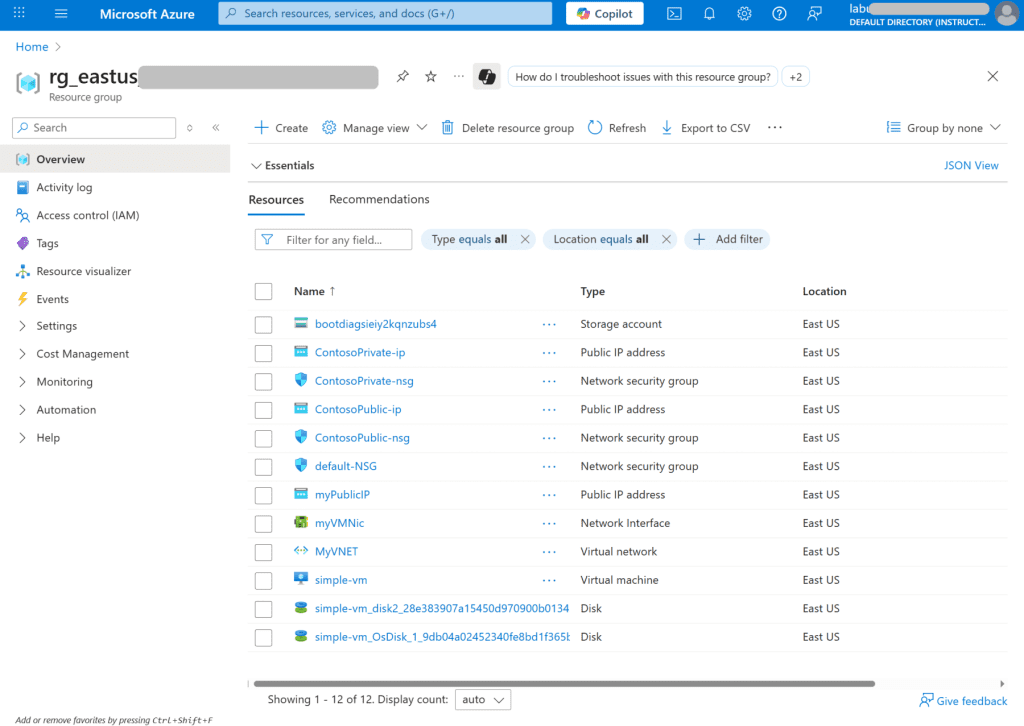
1. Deploy the following Azure resources using an ARM (Azure Resource Manager) template:

  • Windows Virtual Machine (VM)
  • Network Interface (NIC)
  • Storage Account
  • Public IP Address
  • Network Security Group (NSG)
  • Virtual Network (VNet)

*

Inspect the ARM template.

1. Create and save a .json file containing the ARM template code using Visual Studio Code.

Copy code

--SNIP--

*

Understanding the ARM Template.

This ARM template will automatically create the following resources in Azure:

1. Storage Account

  • Name: Auto-generated as bootdiags<unique-string> (based on the resource group ID).
  • Type: Microsoft.Storage/storageAccounts
  • Purpose: Stores boot diagnostics for the VM.

2. Public IP

  • Name: Default is myPublicIP (can be overridden via publicIpName parameter).
  • Type: Microsoft.Network/publicIPAddresses
  • Purpose: Provides a public IP for the VM so it can be accessed remotely.
  • DNS Label: Auto-generated from dnsLabelPrefix parameter (based on VM name + unique string).

3. Network Security Group (NSG)

  • Name: default-NSG
  • Type: Microsoft.Network/networkSecurityGroups
  • Purpose: Security rules for the VM’s network interface.
  • Rules: Allows RDP (TCP port 3389) from any source.

4. Virtual Network (VNet)

  • Name: Vnet01
  • Type: Microsoft.Network/virtualNetworks
  • Address Space: 10.0.0.0/16
  • Subnet:
  • Name: Subnet1
  • Address Prefix: 10.0.0.0/24
  • NSG: Attached default-NSG

5. Network Interface (NIC)

  • Name: myVMNic
  • Type: Microsoft.Network/networkInterfaces
  • Purpose: Connects VM to VNet and Public IP.

6. Virtual Machine (VM)

  • Name: simple-vm (default, can override via vmName parameter)
  • Type: Microsoft.Compute/virtualMachines
  • OS: Windows (SKU based on OSVersion parameter, default 2022-datacenter-azure-edition-core)
  • VM Size: standard_b2s (default)
  • OS Disk: Managed, StandardSSD_LRS
  • Data Disk: 1023 GB empty disk
  • NIC: myVMNic
  • Boot Diagnostics: Enabled, using the storage account

7. Output

Hostname: The fully qualified domain name (FQDN) of the public IP assigned to the VM.

In short: This template creates one VM with a NIC, NSG, public IP, subnet, VNet, and storage account for boot diagnostics.

*

Deploy the ARM template.

1. In the Azure Portal, open Cloud Shell by clicking the Cloud Shell icon.

  • When prompted, choose Bash.

In the setup box, enter the following:

  • No storage account required
  • Subscription: Select your resource group
  • Click Apply.

*

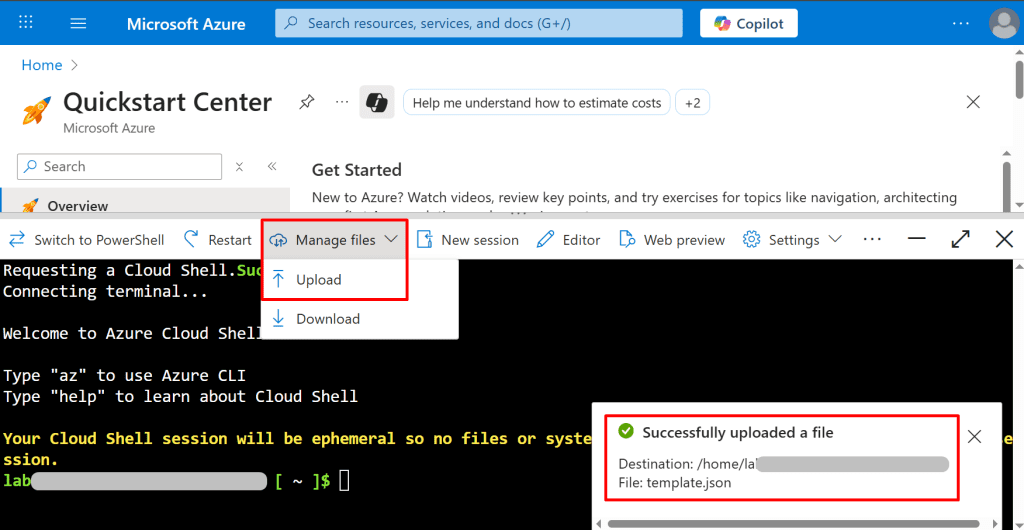
2. In the Cloud Shell toolbar, click Manage files, then select Upload, and upload the template.json file to the Cloud Shell home directory.
*

3. Now deploy the resources using the given command. This step may take a few minutes in order for the resources to get deployed successfully.

Copy command: az deployment group create --name <deployment-name> --template-file <path-to-template-file> --parameters '{"adminUsername": {"value": "<admin-username>"}, "adminPassword": {"value": "<admin-password>"}}' --resource-group <resource-group-name>

Note: Copy this command to a text editor and replace the placeholders:

<deployment-name> → your deployment name

<resource-group-name> → your resource group name

<path-to-template-file> → path to your ARM template file (e.g., template.json)

<admin-username> → any username you choose

<admin-password> → a password ≥ 12 characters

*

Verify your deployments.

*

Conclusion

By following this guide, you have successfully deployed an Azure Virtual Machine using an ARM template. The deployment automatically created all necessary supporting resources, including:

  • Storage Account for boot diagnostics
  • Virtual Network and Subnet for network connectivity
  • Network Security Group with RDP access
  • Public IP Address for external access
  • Network Interface connected to the VM

This approach ensures repeatable, consistent, and automated deployments, reduces manual configuration errors, and allows you to quickly provision additional VMs or environments by reusing and modifying the template.
You can now access the VM using the public IP or DNS name provided in the outputs and extend the template further for additional resources as needed.

Deploy an Internal Load Balancer for VMs Using an ARM Template.

Inspect the ARM Template

1. Create and save a .json file containing the ARM template code using Visual Studio Code

Copy code

--SNIP--

*

Understanding the ARM Template

This ARM template deploys a simple backend infrastructure with two Windows virtual machines, an internal load balancer, and storage. Let’s break it down:

Parameters:

  • adminUsername: Admin username for the VMs.
  • adminPassword: Admin password for the VMs (secure).
  • vmNamePrefix: Prefix for VM names.
  • location: Azure region for all resources.
  • vmSize: Size of the VMs.

Variables:

  • availabilitySetName: Name for the availability set.
  • storageAccountType / storageAccountName: Type and unique name of the storage account.
  • virtualNetworkName / subnetName: Names for the virtual network and subnet.
  • loadBalancerName: Name of the internal load balancer.
  • networkInterfaceName / subnetRef: Network interface names and subnet reference.
  • numberOfInstances: Number of VMs (2).

Resources:

  • Storage Account: Creates a storage account for VM diagnostics.
  • Availability Set: Groups VMs to ensure high availability.
  • Virtual Network & Subnet: Sets up networking for the backend.
  • Network Interfaces: Connects VMs to the network and load balancer.
  • Internal Load Balancer: Distributes traffic across the VMs with rules and probes.
  • Virtual Machines: Deploys VMs with specified OS, size, storage, and network settings.

Note: This template automates the deployment of a backend setup with two VMs, load balancing, and storage. Customize the parameters to fit your specific environment.

*

Deploy the ARM template.

1. In the Azure Portal, open Cloud Shell by clicking the Cloud Shell icon.

  • When prompted, choose Bash.

In the setup box, enter the following:

  • No storage account required
  • Subscription: Select your resource group
  • Click Apply.

*

2. In the Cloud Shell toolbar, click Manage files, then select Upload, and upload the template.json file to the Cloud Shell home directory.

*

3. Deploy the resources using the provided command. It may take a few minutes to complete.

Copy Command: az deployment group create --resource-group <resourcegroupname> --template-file template.json

After running the command, you will be asked for adminUsername and adminPassword. Enter the values to proceed.

--SNIP--

*

Verify your deployments.

*

Conclusion

This ARM template automates the deployment of a backend infrastructure with high availability and internal load balancing. By executing this template, you provision:

  • A storage account for VM diagnostics and data storage.
  • An availability set to ensure VMs remain highly available.
  • A virtual network and subnet to isolate and manage backend traffic.
  • Network interfaces for each VM, connected to the internal load balancer.
  • An internal load balancer with frontend, backend, rules, and health probes to distribute traffic evenly.
  • Two Windows virtual machines configured with the specified OS, size, storage, and network settings.

This template provides a repeatable, consistent, and scalable deployment model. Customizing parameters such as VM names, sizes, and location allows you to adapt the infrastructure to different environments, making it ideal for backend applications requiring redundancy and load balancing.

*

Create a Batch Account using an ARM template.

Note: An Azure Batch Account lets you run large-scale compute jobs in the cloud. It handles job scheduling, distributes tasks across VMs, and works with a Storage Account to store input and output data.

*

Inspect the ARM Template

1. Create and save a .json file containing the ARM template code using Visual Studio Code.

Copy code

--SNIP--

*

Understanding the ARM Template

This ARM template creates a Storage Account and a Batch Account. Let’s break it down:

Parameters:

  • batchAccountName: Name of the Batch Account. Defaults to a formatted string based on the resource group’s unique ID.
  • storageAccountSku: Type of Storage Account. Default is Standard_LRS. Allowed values: Standard_LRS, Standard_GRS, Standard_ZRS, Premium_LRS.
  • location: Location for all resources. Defaults to the resource group’s location.

Variables:

  • storageAccountName: Generated from the resource group’s unique ID.

Resources:

  • Storage Account
  • Type: Microsoft.Storage/storageAccounts
  • API Version: 2021-08-01
  • Configured with the selected SKU and StorageV2 kind
  • Tagged with the storageAccountName

Batch Account:

  • Type: Microsoft.Batch/batchAccounts
  • API Version: 2021-06-01
  • Uses the Storage Account for auto-storage
  • Tagged with the batchAccountName.
  • Depends on the Storage Account to ensure proper creation order

Outputs:

  • storageAccountName: Returns the Storage Account name.
  • batchAccountName: Returns the Batch Account name.

In short: This template provisions a Storage Account and a Batch Account, linking them via auto-storage. It includes parameters, variables, resources, and outputs, giving flexibility and information about the deployed resources. Adjust parameter values as needed before deployment.

*

Deploy the ARM template.

1. In the Azure Portal, open Cloud Shell by clicking the Cloud Shell icon.

  • When prompted, choose Bash.

In the setup box, enter the following:

  • No storage account required
  • Subscription: Select your resource group
  • Click Apply

*

2. In the Cloud Shell toolbar, click Manage files, then select Upload, and upload the template.json file to the Cloud Shell home directory.

*

3. Deploy the resources using the given command. This may take a few minutes for the deployment to complete.

Copy command: az deployment group create --resource-group <resource-group-name> --template-file <path-to-template-file> --parameters batchAccountName=<batch-name> location=eastus

*

Verify your deployments

*

Conclusion:
This ARM template provisions a Storage Account and a Batch Account in Azure. The Storage Account is created with the specified SKU and a name generated automatically based on the resource group ID, ensuring uniqueness. The Batch Account is configured to use the Storage Account for auto-storage. The template includes parameters, variables, resources, and outputs, making it flexible and easy to deploy.

Create an Azure DNS Zone and Record using an ARM Template.

Inspect the ARM Template

1. Create and save a .json file containing the ARM template code using Visual Studio Code.

Copy code

--SNIP--

*

Understanding the ARM Script

This ARM template creates a DNS zone and an A record in Azure.

Parameters:

  • zoneName: Name of the DNS zone. Defaults to a string based on the resource group’s unique ID. Example: hostname.org.
  • recordName: Name of the DNS record relative to the zone. Default is www. Not a full domain name.

Resources:

  • DNS Zone: Created using the zoneName parameter.
  • A Record: Created in the DNS zone with the recordName parameter and IPv4 addresses 1.2.3.4 and 1.2.3.5. TTL is set to 3600 seconds. Depends on the DNS zone being created first.

Outputs:

  • nameServers: Returns an array of the name servers assigned to the DNS zone.
  • Note: This template defines a DNS zone and an A record, making it easy to deploy DNS settings in Azure automatically.

*

Deploy the ARM template.

1. In the Azure Portal, open Cloud Shell by clicking the Cloud Shell icon.

  • When prompted, choose Bash.

In the setup box, enter the following:

  • No storage account required
  • Subscription: Select your resource group
  • Click Apply

*

2. In the Cloud Shell toolbar, click Manage files, then select Upload, and upload the template.json file to the Cloud Shell home directory.

*

3. Deploy the resources using the given command. It may take a few minutes for the resources to be created successfully.

Copy Command: az deployment group create --name <deployment-name> --resource-group <resource-group-name> --template-file <path-to-template-file> --parameters zoneName=<zoneName-value> recordName=<recordName-value>

Note: Copy this command to a text editor and replace the placeholders:

  • <deployment-name> → Your deployment name
  • <resource-group-name> → Your resource group name (from Azure portal or lab page)
  • <path-to-template-file> → Path to your ARM template file (e.g., template.json)
  • <zoneName-value> → DNS zone name (e.g., TestDNS.com). Must have 2 parts and be unique.
  • <recordName-value> → DNS record name (e.g., www)

--SNIP--

*

Verify your deployments

*

Conclusion:
This ARM template creates an Azure DNS zone and an A record. The DNS zone is named using the zoneName parameter, and the A record is created with the recordName parameter and assigned IPv4 addresses. The template outputs the name servers for the DNS zone, making it easy to deploy and retrieve DNS information automatically.

Deploy an Azure Static Web App using an ARM template.

Generate a GitHub Personal Access Token (PAT) with Specific Scopes

Personal Access Tokens (PATs) are used for authentication and authorization when interacting with GitHub via the command line, APIs, or automation tools. Follow the steps below to create one with the required scopes:

1. Log in to GitHub

  • Go to GitHub and sign in with your account.
  • In the upper-right corner of the homepage, click on your profile picture and select Settings from the dropdown menu.

*

2. Scroll down to the bottom of the left-hand menu and click on Developer settings.

*

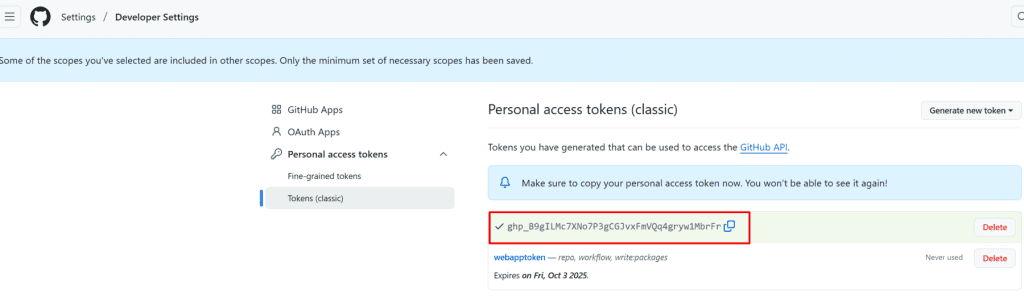
3. Select Personal access tokens, then choose Tokens (classic).

*

4. Generate New Token (classic)

*

5. Enter a descriptive name for the token in the Note field. Next, under the Select scopes section, enable the following permissions:

  • repo
  • workflow
  • write:packages

*

6. Scroll down to the bottom of the page and click on Generate token.

*

7. Copy the generated token value and store it securely, as it will only be displayed once.

*

Create a GitHub Repository

1. Click here to creare new repository. 

  • Enter repository name.
  • Click "Create repository".

*

2. Copy your repository URL and save it in a notepad or a secure location for future reference.

*

Inspect the ARM Template

1. You will need 2 files:

azuredeploy.json Copy

  • This is the ARM template.
  • It defines what resources will be deployed in Azure and their configuration (e.g., storage accounts, web apps, networking).
  • Think of it as the blueprint for your deployment.

azuredeploy.parameters.json Copy

  • This is the parameters file.
  • It provides specific values to use in the ARM template (e.g., resource names, locations, GitHub repo URL, PAT).
  • Think of it as filling in the details on the blueprint before building.
  • Update the azuredeploy.parameters.json file with your repository URL and GitHub Personal Access Token (PAT).

Copy code

*

2. In the azuredeploy.parameters.json file, update the following parameter:

  • repositoryUrl: Enter the URL of your Static Web App GitHub repository that you copied earlier.
  • repositoryToken: Enter the GitHub Personal Access Token (PAT) that you generated and saved earlier.

*

Deploy the ARM template.

1. In the Azure Portal, open Cloud Shell by clicking the Cloud Shell icon.

  • When prompted, choose Bash.

In the setup box, enter the following:

  • No storage account required
  • Subscription: Select your resource group
  • Click Apply.

*

2. In the Cloud Shell toolbar, click the Manage files icon, then select Upload to upload azuredeploy.json and azuredeploy.parameters.json to the Cloud Shell home directory.

*

3. Deploy the resources using the following command. The deployment may take a few minutes to complete successfully.

Copy Command: az deployment group create --name DeployLocalTemplate --resource-group <resourcegroupname> --template-file azuredeploy.json --parameters azuredeploy.parameters.json --verbose

or

az deployment group create \
--name DeployLocalTemplate \
--resource-group <resourcegroupname> \
--template-file azuredeploy.json \
--parameters azuredeploy.parameters.json \
--verbose

--SNIP--

*

Verify your deployments

1. After deploying your template, check that all the resources from the template exist in the resource group. To do this, search for Resource groups in the Azure Portal’s top search bar and open it.

*

2. Click on View app in browser.

*

3. The static app is alive!

*

Conclusion:

You have successfully deployed an Azure Static Web App by creating a GitHub Personal Access Token, updating the ARM template parameters, and deploying the resources using Azure Cloud Shell. All resources were verified, and the Static Web App is live. This process demonstrates how to automate Azure deployments using ARM templates, leveraging infrastructure as code for efficient and repeatable management.

*

Written by Kirill.A - Azure & Cybersecurity Consultant at AntusNet

➤ Want more? Browse all our Azure implementation guides.

Need help implementing secure Azure solutions?

Contact us for a free consultation.

    error: Content is protected !!