Loading...

Azure Quick Links

Azure Cloud Projects

User & Identity Security

Configure MFA with Conditional Access, bypass settings, enable SSPR and Identity Protection, and optionally create groups with role assignments and P2 license assignment..

Task Details

Configure MFA with Conditional Access, bypass settings, enable SSPR and Identity Protection, and optionally create groups with role assignments and P2 license assignment.

1. Configure MFA (Multi-Factor Authentication).

2. Create a Conditional Access policy for MFA.

3. Bypass MFA.

4. Self-Service Password Reset (SSPR).

5. Identity Protection.

Bonus: Create a group, add users to the group, and assign a role to the group members..

Bonus: How to Assign a P2 License to a User.

*

Steps

1. Disable security defaults.

Note: New Azure tenants have Security Defaults enabled, which enforce MFA and block legacy authentication. Organizations often disable Security Defaults and use Conditional Access instead, since it provides more granular control (e.g., enforce MFA only in certain conditions, exclude service accounts, meet compliance).

*

2. To enable MFA for users, navigate to Entra ID → Users → All Users then click Per-user MFA.

*

3. By default, MFA is disabled for all users. Select the user for whom you want to enable MFA, then click 'Enable MFA.

Note: After you enable MFA, the user will be required to go through the MFA setup wizard before their next sign-in.

Note: If you select 'Enforce MFA,' the user will be required to complete MFA every time, regardless of other settings.

*

Conclusion
Configuring MFA adds an essential layer of security by requiring users to verify their identity through multiple methods. By enabling MFA through Conditional Access policies, organizations can greatly reduce the risk of unauthorized access while maintaining a smooth sign-in experience for trusted users.

Create a Conditional Access policy for MFA

Note: See the Bonus section for instructions on creating a group, adding users, and assigning roles to group members.

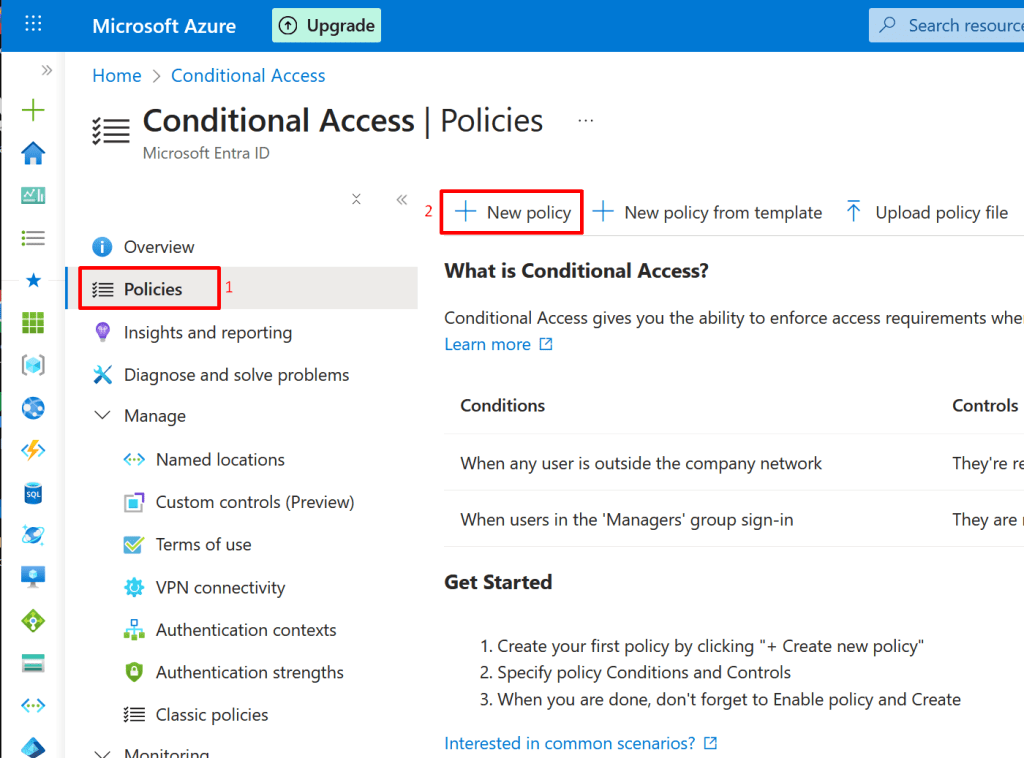
1. Go to Microsoft Entra → Conditional Access by typing it in the search bar. Select it, then click Policies.

*

2. Click New policy
*

3. Give the policy a name, then assign it to the group containing the admin users.

Note: You can also assign the policy to individual users, however, assigning it to a group is recommended to reduce management effort.

*

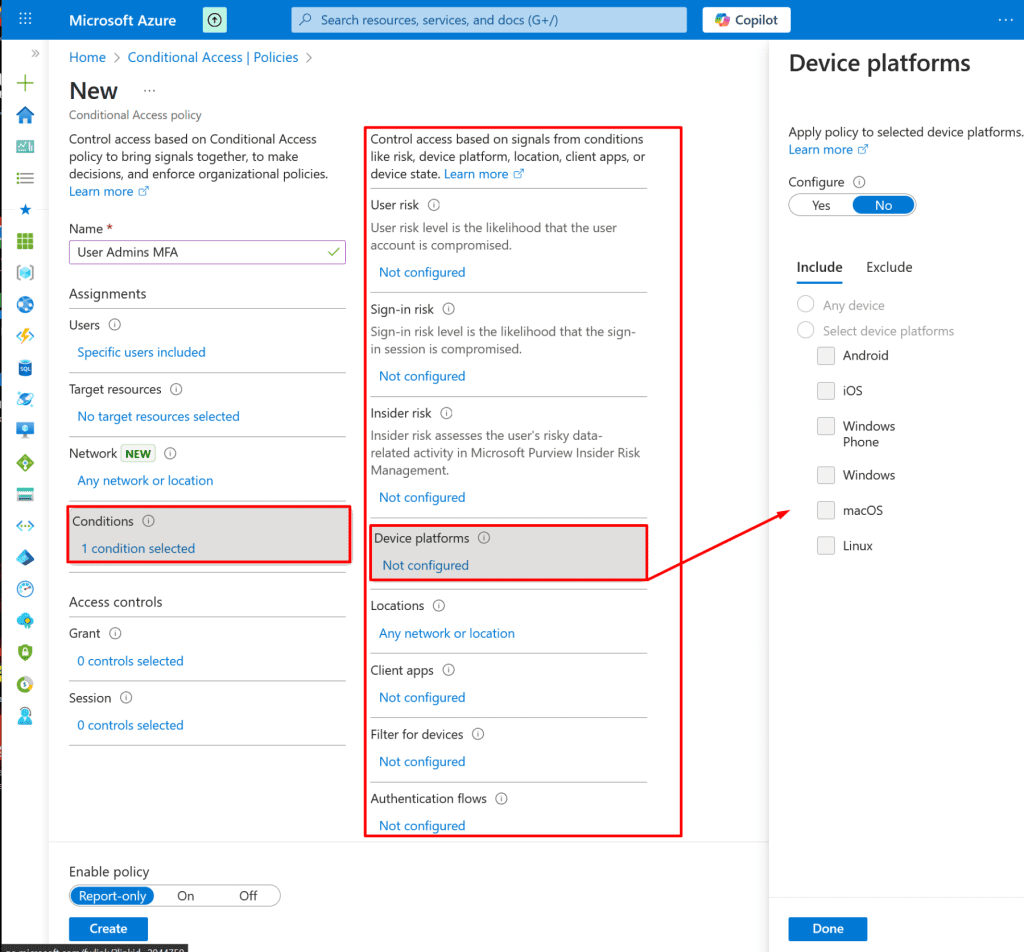
4. By configuring conditions, you ensure that the policy only triggers for the specific scenarios you intend to protect, such as "a user with high sign-in risk" or "any sign-in coming from outside the corporate network on a mobile device.
*

5. In the Grant section, you can choose whether to grant or block access based on the conditions you specified. In this demo, we will grant access and require MFA for the User Admins group.

*

6. In the Enable Policy section, turn the policy On.

*

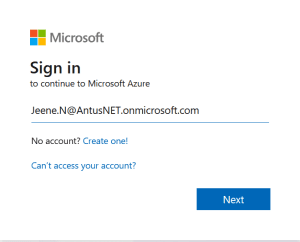
7. Try signing in as any member of the User Admins group to verify that the Conditional Access policy for MFA works as expected.
*

8. As you can see, it requires additional steps to sign in.

*

9. You will need to install the Microsoft Authenticator app on your phone, scan the QR code, and follow the wizard to complete MFA setup.

Note: Many of the legacy MFA options are no longer available in the Azure portal. Microsoft has deprecated per-user MFA management and moved MFA enforcement to Conditional Access policies and Security defaults in Entra ID.

  • Use Security defaults for simple, tenant-wide MFA.
  • Use Conditional Access for flexible and granular MFA control (requires Entra ID P1/P2).

Conclusion
Creating a Conditional Access policy for MFA ensures that strong authentication is applied based on risk, user group, or location. This approach provides more flexibility and control than enabling MFA per user, making it easier to balance security with user productivity.

Bypass MFA

Warning: Bypassing MFA increases risk if the IP is compromised.

You can configure Conditional Access so users connecting from specific IP ranges (named locations / “trusted IPs”) are excluded from an MFA requirement. This is often used for on-premises office IPs or trusted datacenter ranges so users don’t repeatedly perform MFA from those locations.
Important: this is an exemption — it reduces protection for those IPs and increases risk if an IP is spoofed or compromised.

1. Go to Entra ID → Security → Named locations — configure country-based locations to exempt trusted regions from Conditional Access MFA.

Note: Users signing in from the specified named location (country/region) will automatically bypass MFA.

*

2. Instead of countries/regions, you can also configure a Named Location based on IP address ranges. Users signing in from these trusted IP ranges can be excluded from MFA through Conditional Access policies.

Note: In this demo, a single IP — 87.234.14.123/32 — will bypass MFA.

Warning: Only use a single, static, corporate-owned public IP for this kind of exclusion; bypassing MFA increases risk if the IP is compromised.

Conclusion
Bypassing MFA should only be used in specific, controlled scenarios such as trusted locations or IP ranges. While it can improve user convenience, it must be applied carefully to avoid weakening overall security.

*

Self-Service Password Reset (SSPR)

SSPR allows users to reset or unlock their own passwords without contacting IT support, improving security and reducing helpdesk workload.

1. Go to Entra ID → Users and click Password Reset.

*

2. You can enable SSPR for all users or for selected groups. In this demo we will choose all users.

*

3. In the Authentication Methods blade, you can specify how many methods a user must complete to reset their password.

*

4. You can also choose to use security questions as an additional verification method. Users will need to answer these questions correctly to reset their password, adding an extra layer of security to the SSPR process.

Note: In Microsoft Entra (Azure AD) Self-Service Password Reset (SSPR), the correct answers to security questions are configured and stored by the user themselves during the SSPR registration process.

*

5. You can choose from predefined questions or create your own custom questions.

*

6. In the Notifications blade, you can choose whether to notify users and global administrators via email about password resets.

Conclusion
SSPR empowers users to reset or unlock their passwords securely without IT support, improving productivity while maintaining strong account security. When properly configured, it reduces help-desk workload and ensures users can quickly regain access to their accounts.

Identity protection

Microsoft Entra ID Identity Protection uses AI and machine learning to detect suspicious identity activity.

Identity Protection adds an intelligent layer of defense against account compromise by combining risk detection with conditional access policies.

Microsoft Entra Identity Protection provides:

  • Risk Policies – User risk policy and sign-in risk policy to automatically respond to detected risks (e.g., require MFA or reset password).
  • Risk Reports – Dashboards showing risky users, risky sign-ins, and risk detections for investigation.
  • Automated Remediation – Actions like blocking access, enforcing MFA, or requiring password reset.
  • Integration with Conditional Access – Applies risk-based controls to protect accounts in real time.

Note: In this section, I will explain a few key blades of identity protection.

1. Go to EntraID → Security → Identity protection

*

2. The User Risk policy blade (part of Microsoft Entra ID Protection) allows you to automatically enforce security controls based on the overall probability that a user account has been compromised.

Assess User Compromise: It leverages machine learning to detect signals (like leaked credentials or unusual user behavior) and calculates a single User Risk Level for the identity (Low, Medium, or High).

*

3. The Sign-in Risk policy blade (also part of Microsoft Entra ID Protection) is used to automatically enforce security controls based on the probability that a specific sign-in attempt is suspicious or not authorized by the identity owner.

Detect Suspicious Attempts: It analyzes real-time signals for a single sign-in event (e.g., impossible travel, signing in from an anonymous IP address, or using unfamiliar properties).

*

4. The Risky sign-ins report (a blade within Microsoft Entra ID Protection) allows security administrators to investigate and manage individual sign-in events that have been flagged as potentially suspicious or compromised.

Note: We can see that user Jeene.N logged in from Chicago, Illinois, USA, which is suspicious for a company located in Canada.

Conclusion

Identity Protection helps organizations strengthen security by detecting and responding to risky sign-ins and compromised accounts. With risk-based policies, automated remediation, and detailed reports, admins can reduce the chance of account compromise while ensuring legitimate users can still access resources securely.

*

Bonus: Create a group, add users to the group, and assign a role to the group members.

1. Go to EntraID → Groups then click "New group"

2. Give the group a name, select 'Yes' for 'Microsoft Entra roles can be assigned to this group,' and then choose the members.

*

3. Assign a User administrator role to the group, and all users within the group will inherit that role.

*

Bonus: How to Assign a P2 Trial License to a User

1. From the user page Go to Microsoft 365 Admin Center: https://admin.microsoft.com

  • Navigate to Active Users: Users → Active Users
  • Select the user you want to assign the license to.
  • Click Licenses and Apps.
  • Assign the Azure AD Premium P2 (Trial) license.
  • Click Save changes. 

*

Written by Kirill.A - Azure & Cybersecurity Consultant at AntusNet

➤ Want more? Browse all our Azure implementation guides.

Need help implementing secure Azure solutions?

Contact us for a free consultation.

    error: Content is protected !!