Loading...

Azure Quick Links

Azure Cloud Projects

Microsoft Defender for Cloud

This project guides you through enabling and integrating Microsoft Defender for Cloud with Azure and Microsoft Sentinel, including configuring Just-In-Time (JIT) VM access for enhanced security.

Task Details

This project walks you through the essential steps to enable, configure, and integrate Microsoft Defender for Cloud within your Azure environment. You’ll learn how to activate Defender plans, manage security policies and recommendations, enable advanced protections like Just-In-Time access and malware detection, and connect alerts to Microsoft Sentinel for centralized monitoring and incident response.

1. Enable Microsoft Defender for Cloud plans to get the enhanced security features.

2. Configure email notifications for security alerts.

3. Review and manage Security policies.

4. Manage a Security Recommendation’s Settings in Microsoft Defender for Cloud.

5. Remediate Storage accounts should prevent shared key access.

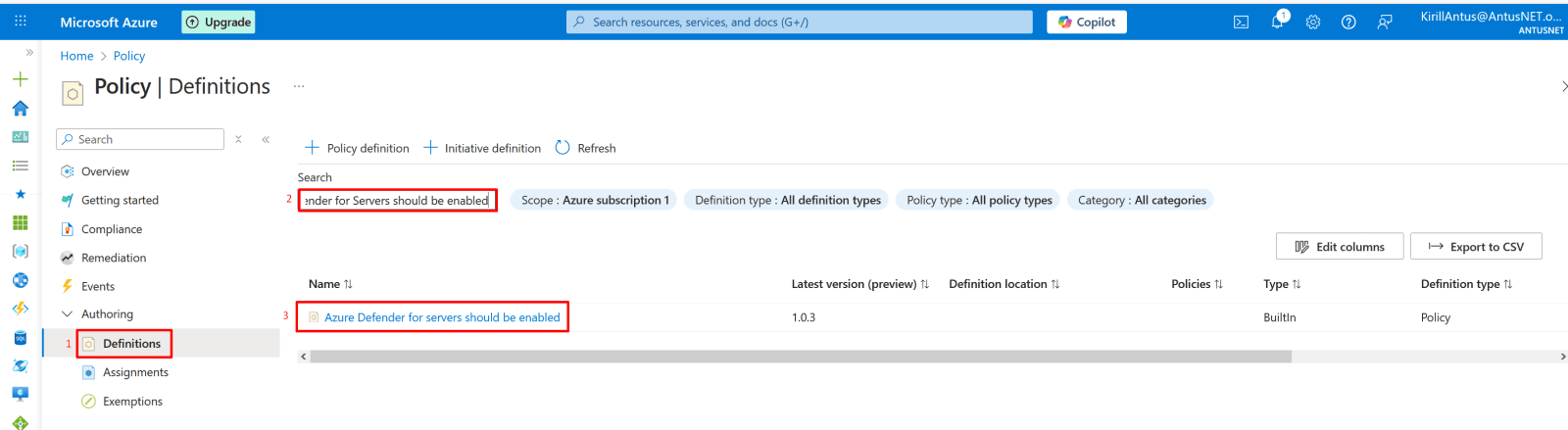
6. Enable and assign Policy "Microsoft Defender for Servers should be enabled"

7. Enable just-in-time virtual machine access.

8. Configure malware detection.

9. Connect Microsoft Defender for Cloud alerts to Microsoft Sentinel.

10. Simulate a malicious file and query incidents using Kusto Query Language (KQL).

*

Steps

Enable Microsoft Defender for Cloud plans to get the enhanced security features.

1. In the Azure portal, open Microsoft Defender for Cloud.

  • Under the Management section, select Environment settings.

*

2. Choose the Azure subscription or workspace you want to protect, in this case, Azure Subscription 1.

*

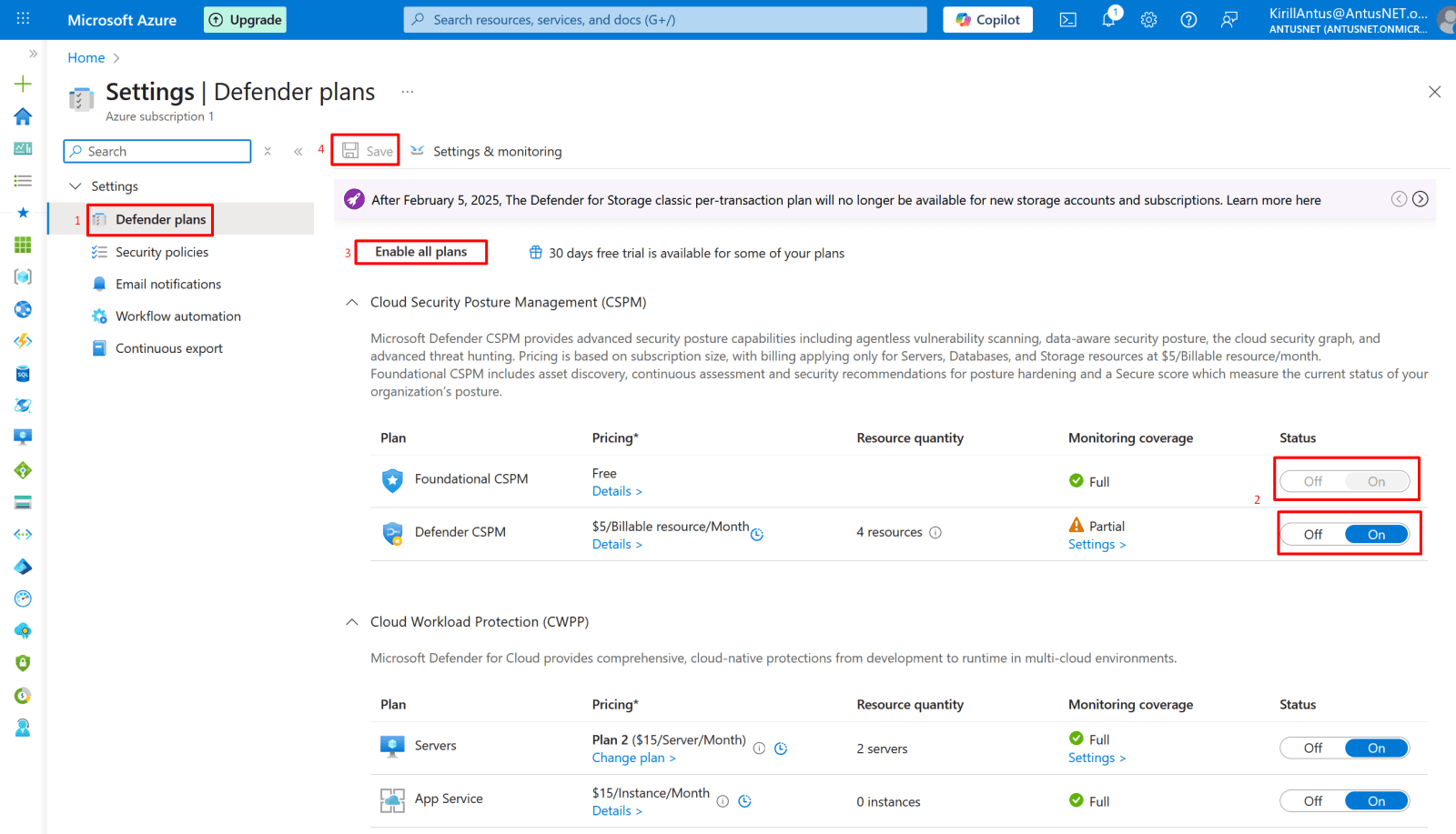
3. You can check monitoring coverage for each Defender plan under Defender plans.

If the coverage shows "Full," all required extensions are installed.

If it shows "Partial," hover over the info icon to see which extensions are missing.

Then select Enable all plans to enable all Microsoft Defender for Cloud plans.

Select Save.
*

Configure email notifications for security alerts.

1. Go to Microsoft Defender for Cloud → Environment settings, then select your subscription.

*

2. Click Email notifications (or Security contacts, if using the new interface).

Choose who should receive alerts:

  • Select users from the dropdown list (e.g., Owner).
  • Or enter specific email addresses, separated by commas (no limit).
  • Click Save to apply the changes.

*

Review and manage Security policies.

1. In Microsoft Defender for Cloud, go to the Management section and select Environment settings.

You’ll see your Azure management groups or subscriptions listed.

Then, select the subscription.

*

2. Click on "Security policies"

This Security policies page in Microsoft Defender for Cloud lets you manage which security standards and compliance frameworks apply to your Azure subscription.

From here, you can:

  • Enable or disable security standards (like Microsoft Cloud Security Benchmark, NIST, CIS, or ISO).
  • View the number of recommendations each standard provides to improve your security posture.
  • Assign frameworks to your subscription to align with organizational or regulatory compliance goals.

Note: The Recommendations blade in Microsoft Defender for Cloud shows specific security improvement actions based on the standards you’ve enabled (like Microsoft Cloud Security Benchmark or NIST).

*

Manage a Security Recommendation’s Settings in Microsoft Defender for Cloud.

1. Go to Defender for Cloud.
Find the recommendation you want to adjust (e.g., “Storage accounts should prevent shared key access”).
Click the recommendation title to open its details.

*

2. On the right panel (Take action), you have these options:

  • Remediate → Follow the fix steps (e.g. disable shared key access in Storage settings).
  • Assign owner & set due date → Assign responsibility and timeline.
  • Exempt → Use this to disable or exclude the recommendation for this resource or scope.
  • Click Exempt → choose reason/scope → Save.
  • This disables it without affecting your secure score.
  • Trigger logic app → Automate response (optional).
  • Deny (Prevention) → Enforce the rule for future resources (blocks misconfigurations).

Note: To enable it again, go back to Recommendations → open it → click "Three dots," and then change back to audit.

*

Remediate "Storage accounts should prevent shared key access"

In the remediation process, I referred to the official Microsoft documentation available here.

1. Disable Shared Key authorization.

  • Navigate to your storage account in the Azure portal.
  • Locate the Configuration setting under Settings.
  • Set Allow storage account key access to Disabled.
  • Click "Save"

Note: After you disallow Shared Key authorization, making a request to the storage account with Shared Key authorization will fail with error code 403 (Forbidden)

*

2. Verify that Shared Key access is not allowed. with following command

Copy command

az storage account show --name storage0946 --resource-group NetworkWatcherRG --query "allowSharedKeyAccess"

*

3. For some recommendations, an automated remediation (fix) option will be available.

On the VM page, open the Microsoft Defender for Cloud blade, select View recommendations, and click on the available recommendation to review its details.

*

4. Click "Fix" then choose your resource to fix.

Enable and assign the policy "Microsoft Defender for Servers should be enabled."

This policy ensures that Defender for Servers (a key protection plan within Microsoft Defender for Cloud) is active on your subscription, it’s one of the most relevant and widely used Defender policies.

1. In the Azure portal, search for "Policy" and open the Azure Policy service.

*

2. Find the Policy Definition.

  • In the left-hand menu, select Definitions.
  • Use the search bar and type: "Defender for Servers should be enabled"

Note: This policy audits whether Defender for Servers Plan 1 or Plan 2 is enabled on your subscription.

*

3. Assign the Policy.

  • Click the policy name → select Assign at the top.

*

4. Under Scope, choose your subscription (e.g., Azure subscription 1).

  • Leave parameters as default.

Under Policy Enforcement, choose:

  • Enabled
  • Effect: Audit (recommended).
  • Click Review + Create → Create.

Note: Some Defender-related policies such as Microsoft Defender for Servers should be enabled only support the AuditIfNotExists effect. This policy checks whether Defender for Servers is turned on but does not enforce it automatically.

To comply, enable the plan manually in Defender for Cloud → Environment settings

*

Enable just-in-time virtual machine access.

Just-In-Time (JIT) VM access temporarily opens management ports (like RDP 3389 or SSH 22) only when needed, reducing exposure to brute-force attacks and minimizing the VM’s attack surface.

1. Go to Defender for Cloud.

  • In the Azure Portal, search for and open Microsoft Defender for Cloud.
  • Open Workload Protections
  • Under the Advanced protection section, click Just-in-time VM access.

*

2. Go to the Not configured tab.

  • Locate your virtual machine (the one you already created).
  • Select your VM and then click on "Enable JIT on 1 VM"

*

3. Configure Ports and Rules.

The default ports (like 3389 for RDP and 22 for SSH) will appear.

Adjust if needed:

  • Protocol: TCP/UDP
  • Allowed Source IP: e.g., My local system IP adress.
  • Max Request Time: e.g., 3 hours
  • Click OK then Save
  • Click Save to apply the configuration.

Note: Without /32 (single IP), Azure won’t save the configuration because it expects a valid CIDR range, not a plain IP.

*

4. The VM will appear in the "Configured" tab.

*

5. Before JIT configuration, our NSG looks like the following:

  • RDP deny with priority of 100

*

6. After enabling Just-In-Time (JIT), Microsoft Defender for Cloud automatically creates network security rules that block inbound traffic to management ports (like RDP 3389 or SSH 22) until access is explicitly requested and approved.

Note: When you enable Just-In-Time (JIT) VM access, Defender for Cloud adds its own rules, but it does not modify or delete your current NSG rules even if they already allow inbound access.

Alert: If your existing “Allow” rule has a higher priority (lower number) , for example, Allow RDP with priority 100 , that rule will still take precedence, keeping the port open all the time AND WILL BYPASS JIT.

*

7. Request JIT Access.

  • Go to Virtual Machines → Your VM → Connect → Request JIT access.
  • Defender for Cloud temporarily opens the port for your approved time window.
  • After time expires, access is automatically blocked again.

Note: Only users with write or higher permissions (e.g., Owner, Contributor, VM Contributor, or Security Admin) can request JIT access, which temporarily opens the selected ports after approval.

*

6. After access is granted, the JIT will be assigned 100 priority and temporarily will take precedence over my RDP deny rule, which was 100 priority.

*

How Does It Actually Work?

When you click “Request Access”:

  • Defender checks your approved IP list (in your /32 config).
  • It temporarily creates an NSG allow rule with source Any, but only Defender’s service tag and your IP are allowed through Azure’s control plane.
  • When the time expires (e.g., 3 hours), Defender deletes the allow rule or disables it.

So even if NSG shows “Any”, you cannot connect (request access) from other IPs , because the request is pre-validated by Defender’s JIT layer before Azure opens RDP.

*

If you need to disable JIT access.

  • Go to Microsoft Defender for Cloud → Workload protections → Just-in-time VM access.
  • Select your VM (currently “Vm01”).
  • In the Configured tab, click on your VM.
  • Click Remove JIT or Revoke access (depending on portal wording).

This immediately closes the RDP port (3389) by restoring the NSG rule that blocks inbound access.

Any new RDP connections will be blocked.

Existing sessions will remain active until manually logged off or disconnected (as described earlier).

Configure malware detection.

Modern way (2025): Malware detection is managed automatically when Microsoft Defender for Servers Plan 2 is enabled.

Verify that mallware detection is installed.

*

Method 1

1. Go to VM Settings → Extensions + applications and verify that the AzureMonitorWindowsAgent, MDE.Windows, and MicrosoftMonitoringAgent extensions are installed.

*

Method 2

1. Confirm by executing the PowerShell command on VM.

  • Go-to VM Operations → Run command and choose "RunPowerShellScript"

*

2. Run the following PowerShell script to confirm that Defender is installed on the VM:

Copy script

Get-MpComputerStatus | Select AMServiceEnabled, AntivirusEnabled, RealTimeProtectionEnabled, NISSignatureLastUpdated

*

Method 3

1. Check Microsoft Defender Antivirus (malware protection) status on all VMs in your subscription.

  • Upload the .ps1 script to Azure and execute it.

Note: Don't forget to replace <your-subscription-name> with your subscription

Copy the PS1 script

*

Connect Microsoft Defender for Cloud alerts to Microsoft Sentinel.

How to enable Azure Sentinel Please refer to the "Azure Sentinel & Playbook" project. 

Prerequisites:

  • You must have a Log Analytics workspace with Sentinel enabled.
  • You must have the Contributor or Owner role on the target subscription/Sentinel workspace.
  • In each subscription you want alerts from, at least one Defender plan must be enabled (for cloud workloads) to generate alerts.
  • The resource provider Microsoft.SecurityInsights must be registered in each subscription.


1. Go to Sentinel → Content Hub, then "Click here to go to the Defender Portal."

*

2. Click Microsoft Defender for Cloud and select Install.

____________________________________________

*

3. After installation is complete, click on the "Manage" button.

*

4. Make sure that the "Tenant-based Microsoft Defender for Cloud" is in use, then open the connector page to confirm its status.

*

5. Enable and configure continuous export in Defender for Cloud.

At the top of that page, you’ll see tabs:

  • Event hub | Log Analytics workspace
  • Click Log Analytics workspace.

Then set the following options:

  • Export enabled: On

Exported data types:

  • Security alerts (you can leave others unchecked for now)

Export frequency:

  • Streaming updates (you can also keep “Snapshots” checked if you want periodic exports)

Export configuration → Resource group:

  • Select the same Resource Group that contains your Sentinel workspace (e.g. SentinelWS)

Log Analytics workspace:

  • Select your Sentinel workspace (SentinelWS)

Then click Save 

*

Simulate a malicious file and query incidents using Kusto Query Language (KQL).

1. Verify the Export Is Active.

Run this PowerShell snippet that creates a safe test “virus” file to verify that Microsoft Defender detects and reports threats correctly.

Copy script

$TestFile = "C:\Temp\EICAR-Test-File.txt"
$EICAR = 'X5O!P%@AP[4\PZX54(P^)7CC)7}$EICAR-STANDARD-ANTIVIRUS-TEST-FILE!$H+H*'
Set-Content -Path $TestFile -Value $EICAR -Force

Note: You can see that Microsoft Defender successfully found a malicious test file.

*

2. Go to VM → Microsoft Defender for Cloud to confirm that the alert was generated.

*

3. Query logs in the Log Analytics workspace using the following Kusto query.

Copy Kusto query

SecurityIncident
| sort by TimeGenerated desc
| take 10

Note: In the tenant-based connector, Defender for Cloud alerts now appear in the SecurityIncident table instead of SecurityAlert, as data flows through Microsoft 365 Defender XDR.

*

4. Alternatively you can query incidents in "Investigation & response" blade in Defender portal.

*

Conclusion

This guide provides a solid foundation for securing Azure workloads with Microsoft Defender for Cloud. By implementing these steps, you enhance your threat protection, strengthen your compliance posture, and gain deeper visibility into your cloud security.
For advanced monitoring and automated incident response, this configuration can be seamlessly combined with Azure Sentinel
to create an integrated Security Operations Center (SOC) environment.

*

Written by Kirill.A - Azure & Cybersecurity Consultant at AntusNet

➤ Want more? Browse all our Azure implementation guides.

Need help implementing secure Azure solutions?

Contact us for a free consultation.

    error: Content is protected !!