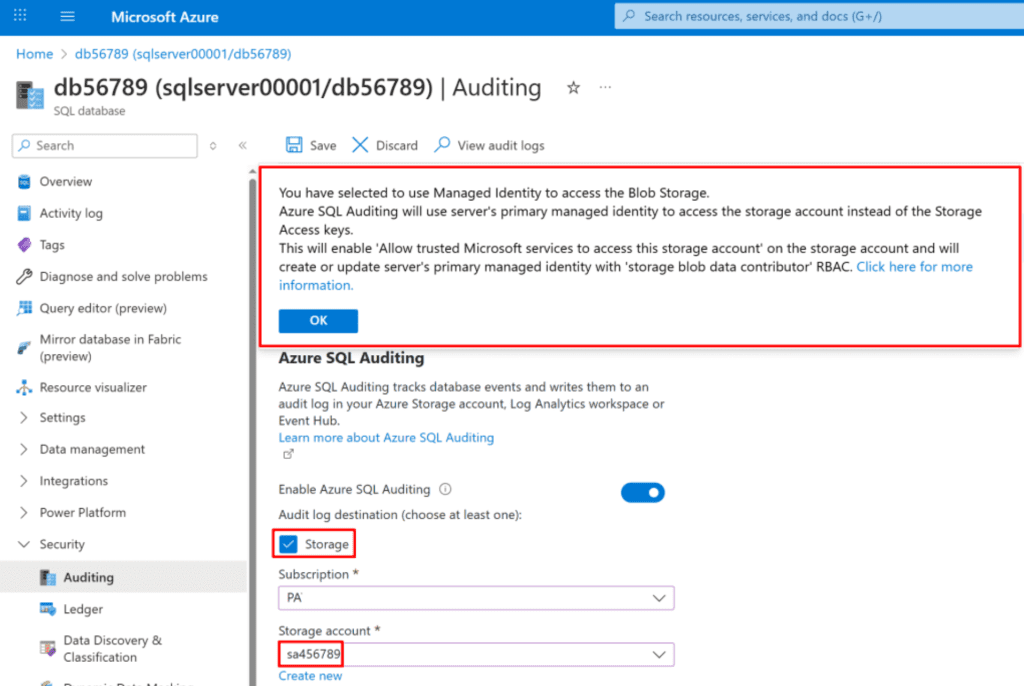
Secure a SQL database by enabling auditing, Microsoft Defender, vulnerability assessment, data classification, Dynamic Data Masking, and Always Encrypted using the SQL Server managed identity.

Task Details
- Create a database and enable Database Auditing to monitor and log database activities.
- Enable Microsoft Defender for SQL and perform a Vulnerability Assessment to identify and remediate potential security risks.
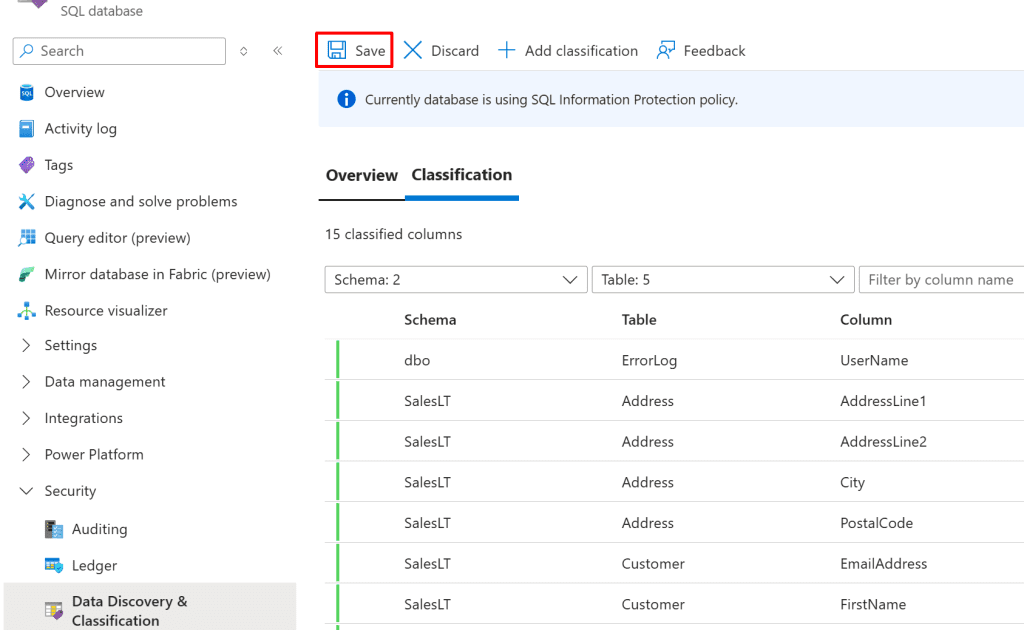
- Manage Data Discovery & Classification recommendations in Microsoft Defender for SQL to classify and protect sensitive data.
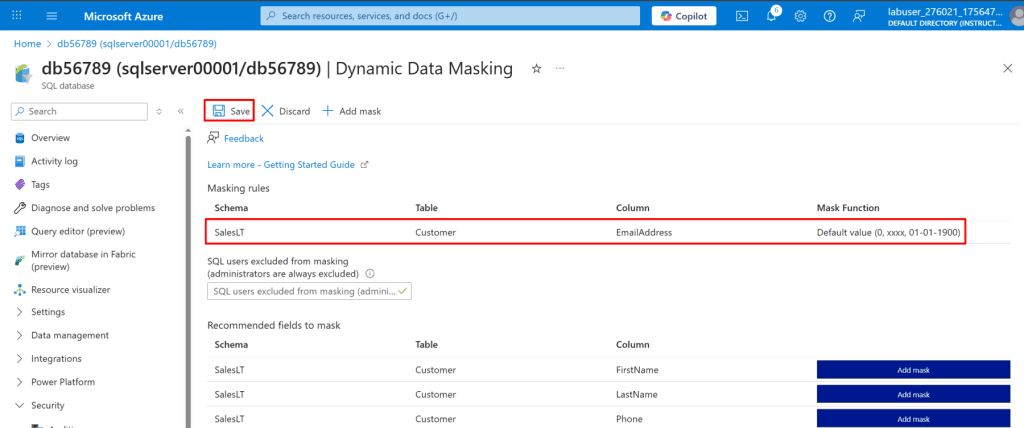
- Configure Dynamic Data Masking to limit exposure of sensitive information to non-privileged users.
- Enable Always Encrypted in Azure SQL using the sqlserver managed identity to ensure client-side encryption of critical columns.
Steps
Note: In this guide, we use Azure SQL PaaS. A SQL VM is preferable when full control, legacy support, or advanced features are required, while Azure SQL PaaS is ideal for modern applications needing a fully managed, secure, and scalable database solution.
Create an Azure SQL Database
1. In the Azure portal, create an Azure SQL Database on a new logical SQL server.
- In the Azure Marketplace, search for and select SQL Database, and then select the SQL Database tile, and then click Create.

*
2. Use the values provided in the table, and keep the default settings for any properties not listed.
In the SQL Database blade, select Create.

*
On the Basics tab:
- Resource group: your resource groupp
- Database name: db56789
- Server: Create new →
- Name: sqlserver00001
- Authentication: SQL authentication
- Admin login: Admin01
- Password: Password123

- Workload environment: Development

- Click on Compute + storage → Configure database →
- Tier: Basic 2 GB → Apply

*
Networking tab:
- Connectivity method: Public endpoint
- Allow Azure services: Yes
- Add current client IP: Yes

*
Security tab:
- Microsoft Defender for SQL: Not now
- Next: Additional settings

*
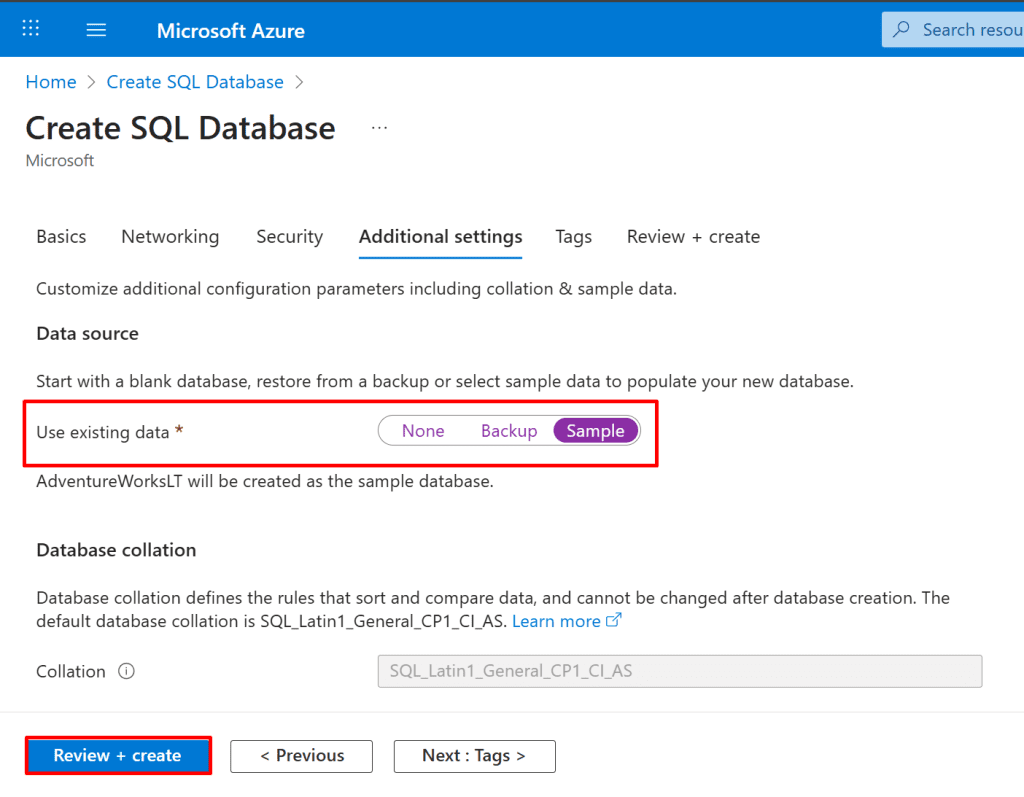
Additional settings tab:
- Data source: Sample (AdventureWorksLT)
- Select Review + create → verify → Create.
Note: In the Additional settings → Data source section, selecting Sample will create the AdventureWorksLT sample database. This option provides pre-populated tables and data for testing and demonstrations.
Note: The deployment takes about 3–5 minutes, and Azure SQL Database is a fully managed service with automatic patching, upgrades, and backups.
*
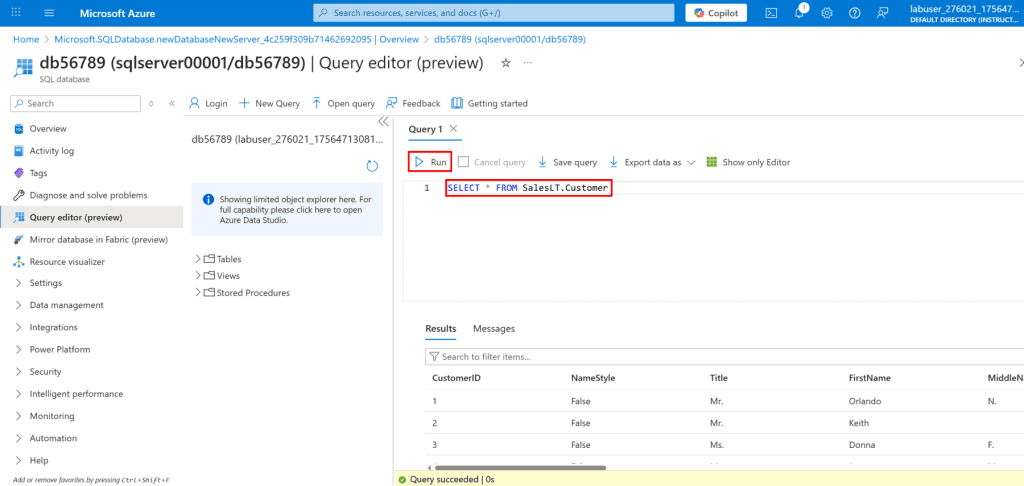
3. Log in to the Database database as Admin01 using Password123 as the password, and then create a query to retrieve all the rows in the SalesLT.Customer table by using SELECT.
- On the Deployment blade, select Go to resource.

*
4. In the Database service menu, select Query editor (preview).
- On the Query editor (preview) page: Login: Ensure Admin01 is entered.
- Password: Enter Password123, then select OK.

*
5. In Query1, line 1, enter the following Transact-SQL (T-SQL) code:
Copy Code: SELECT * FROM SalesLT.Customer
- Select Run to execute Query1, and then review the results.
- Close the Query editor page, and then if prompted by a Your unsaved edits will be discarded dialog, select OK.